
 출처
출처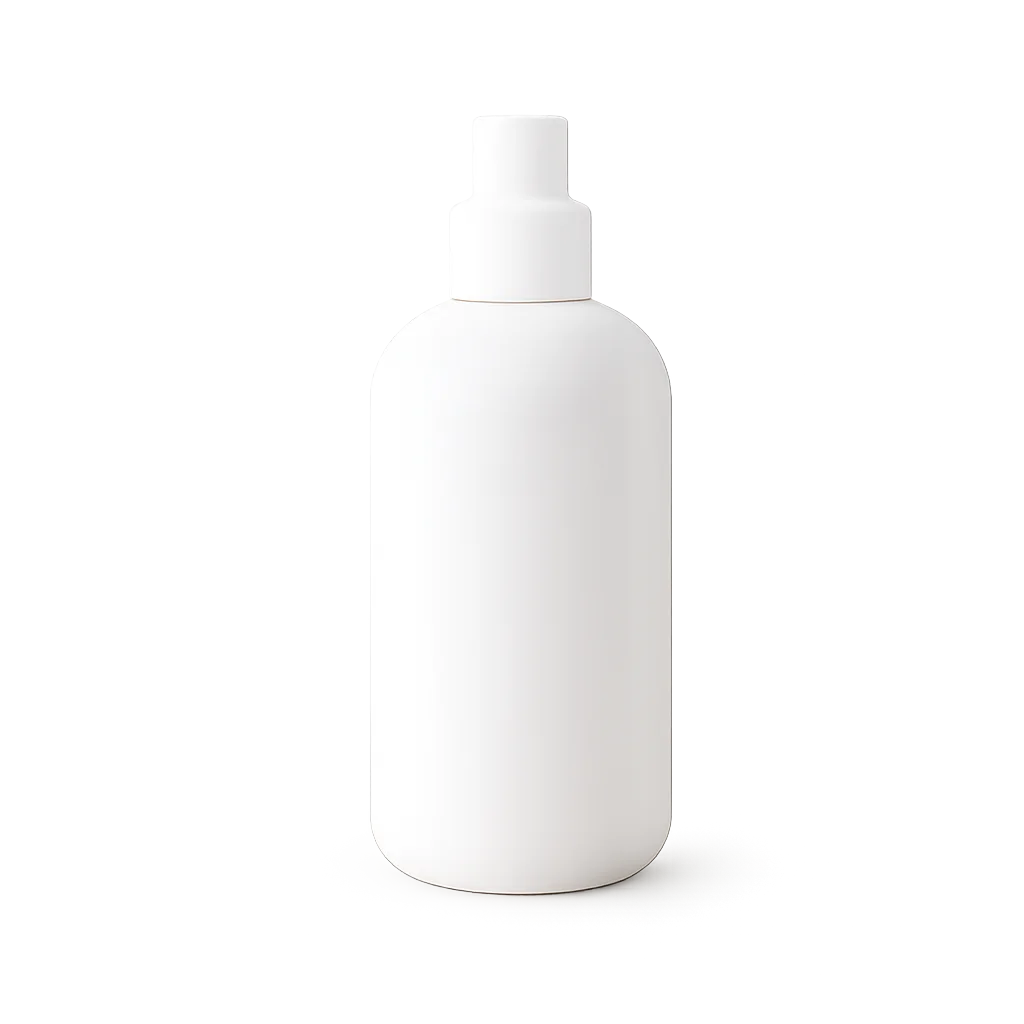 결과
결과마켓플레이스 제품
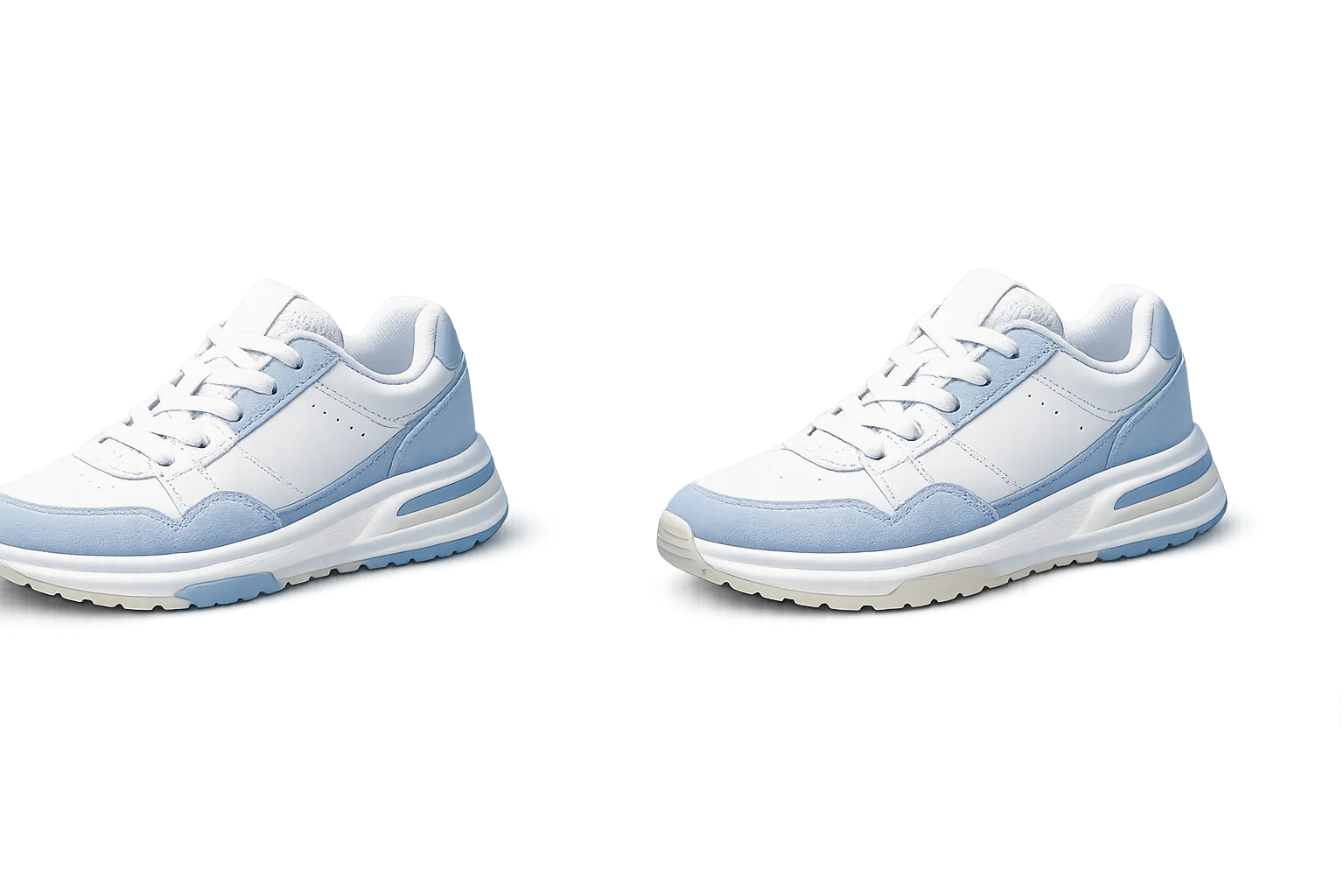
복잡한 카탈로그 사진을 투명 제품 자산으로 변환합니다.
제품 사진, 인물 사진, 프로필 이미지 및 디자인 자산에서 깔끔한 컷아웃으로 배경을 제거하세요.
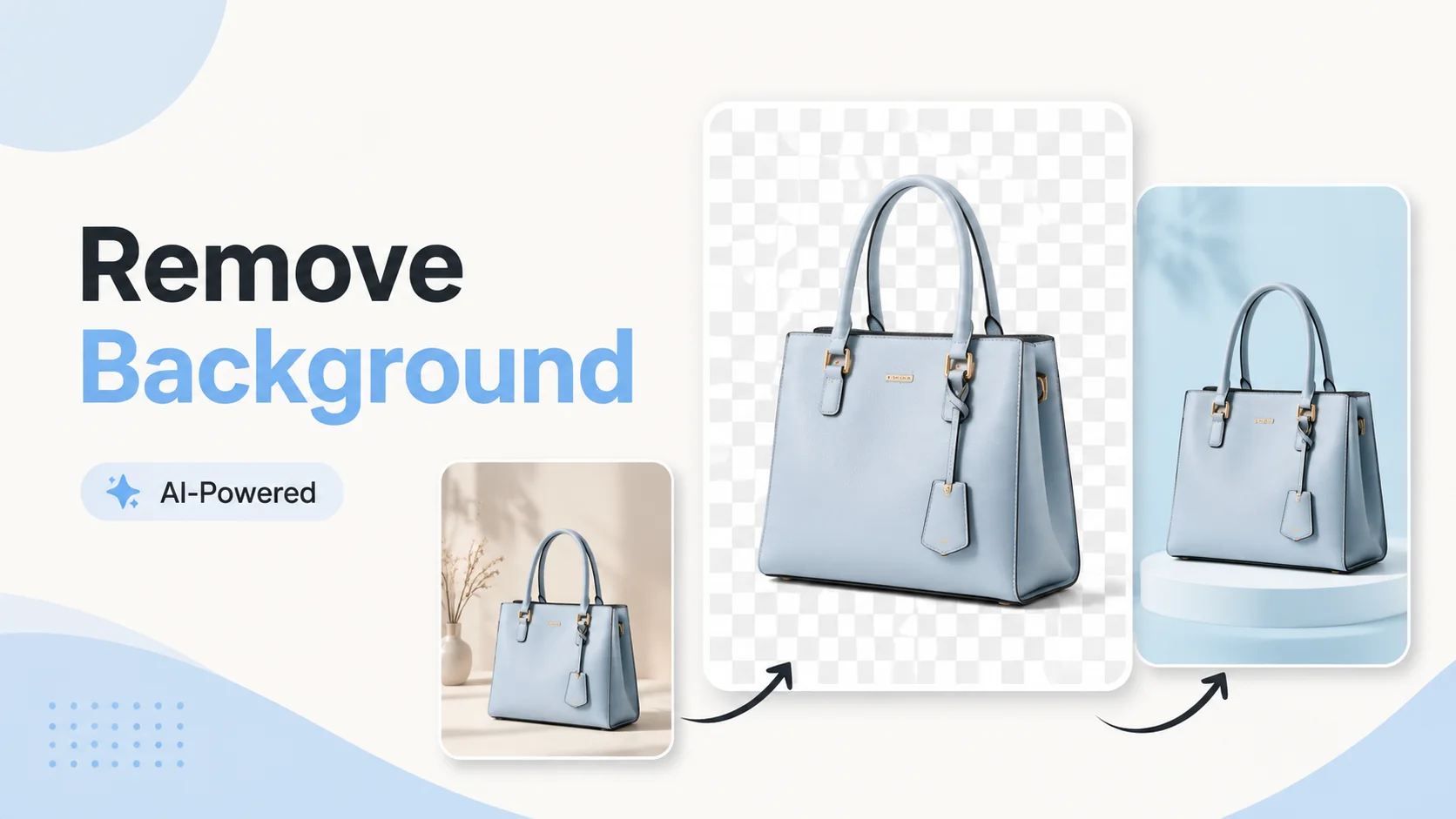
제거기는 빠른 자산 준비를 위해 설계되었습니다. 한 번 업로드하고, 배경을 제거하고, 깨끗한 주제를 다음 레이아웃으로 이동하세요.
출처결과복잡한 카탈로그 사진을 투명 제품 자산으로 변환합니다.
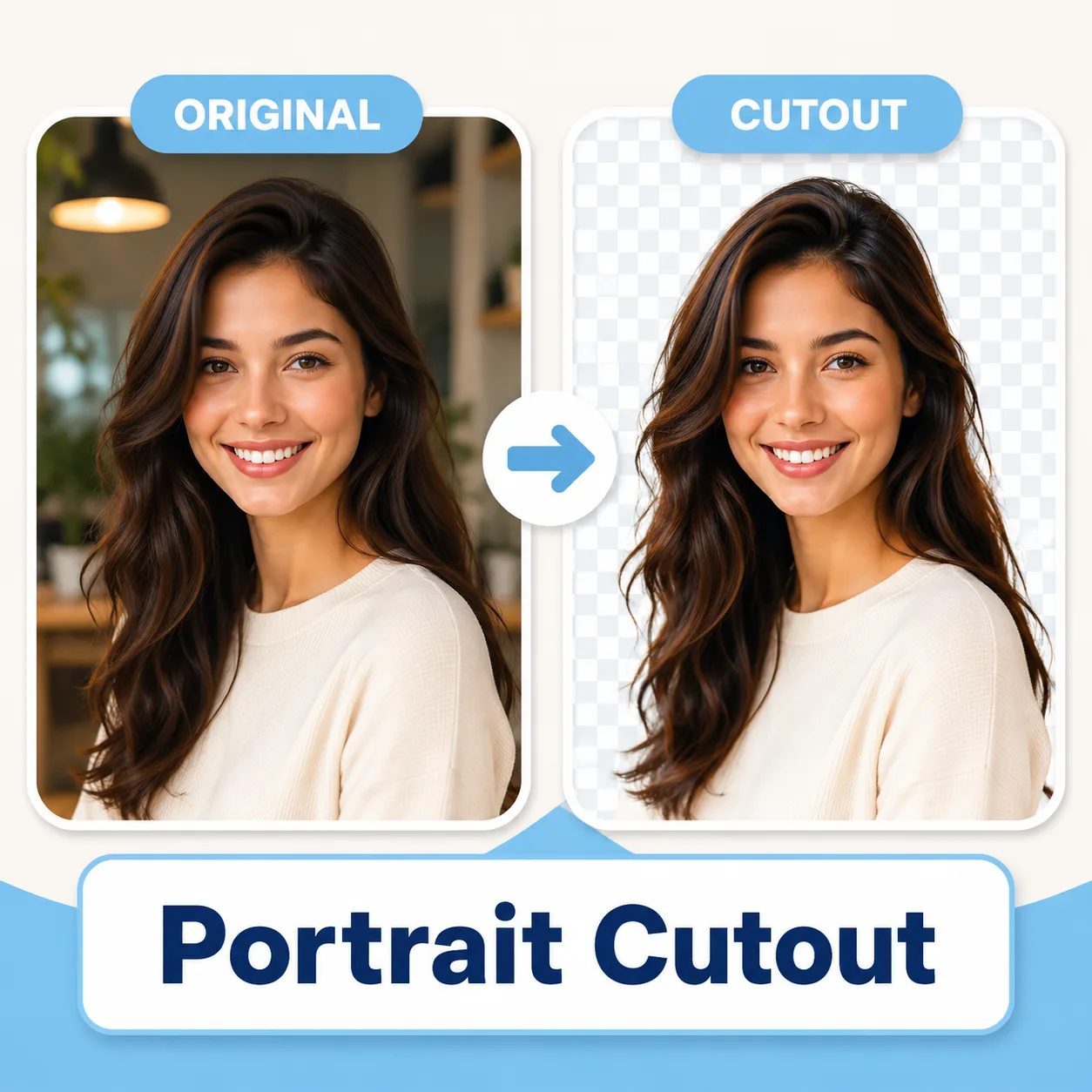 컷아웃
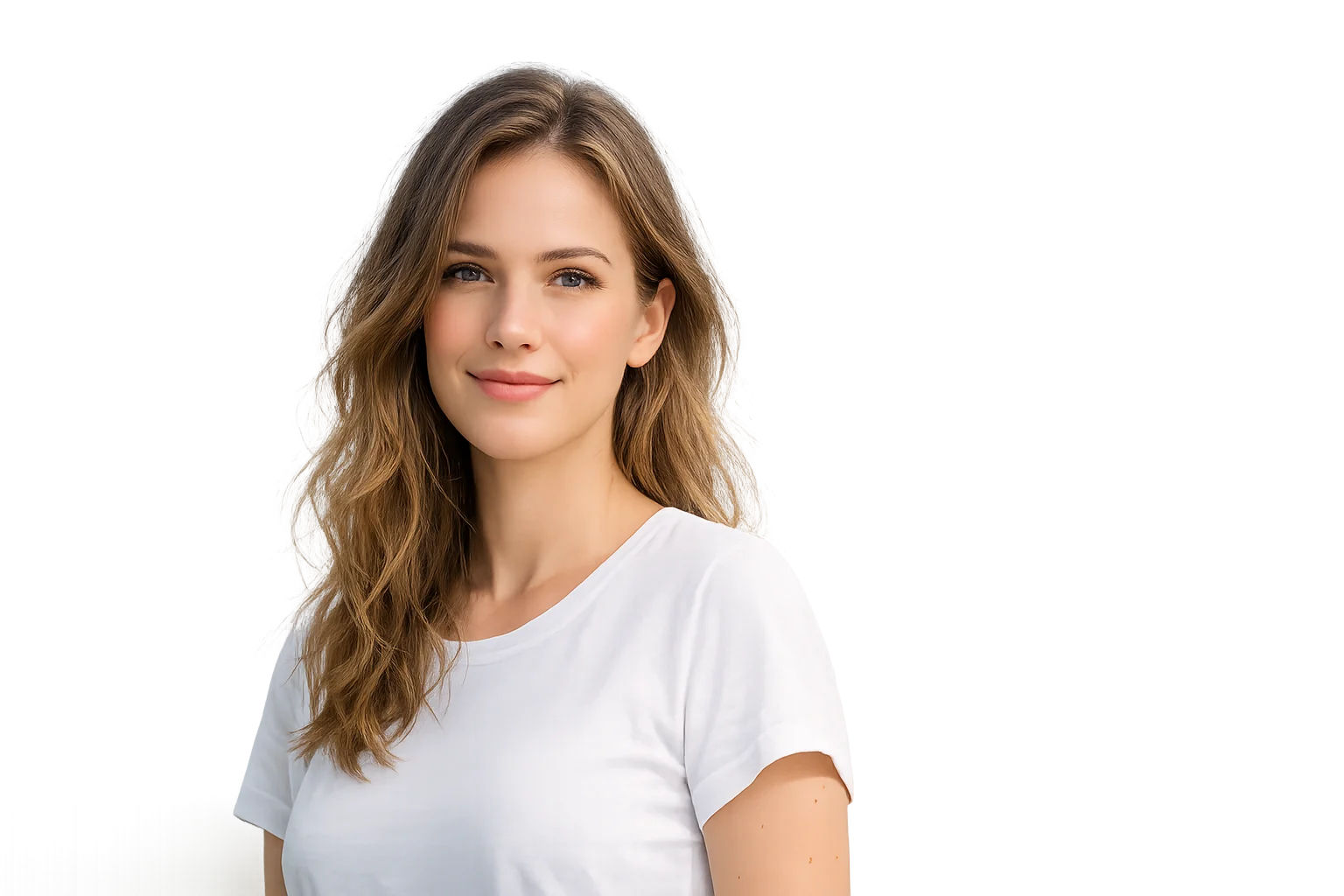
컷아웃아바타 및 포스터를 위해 사람을 씬에서 분리합니다.
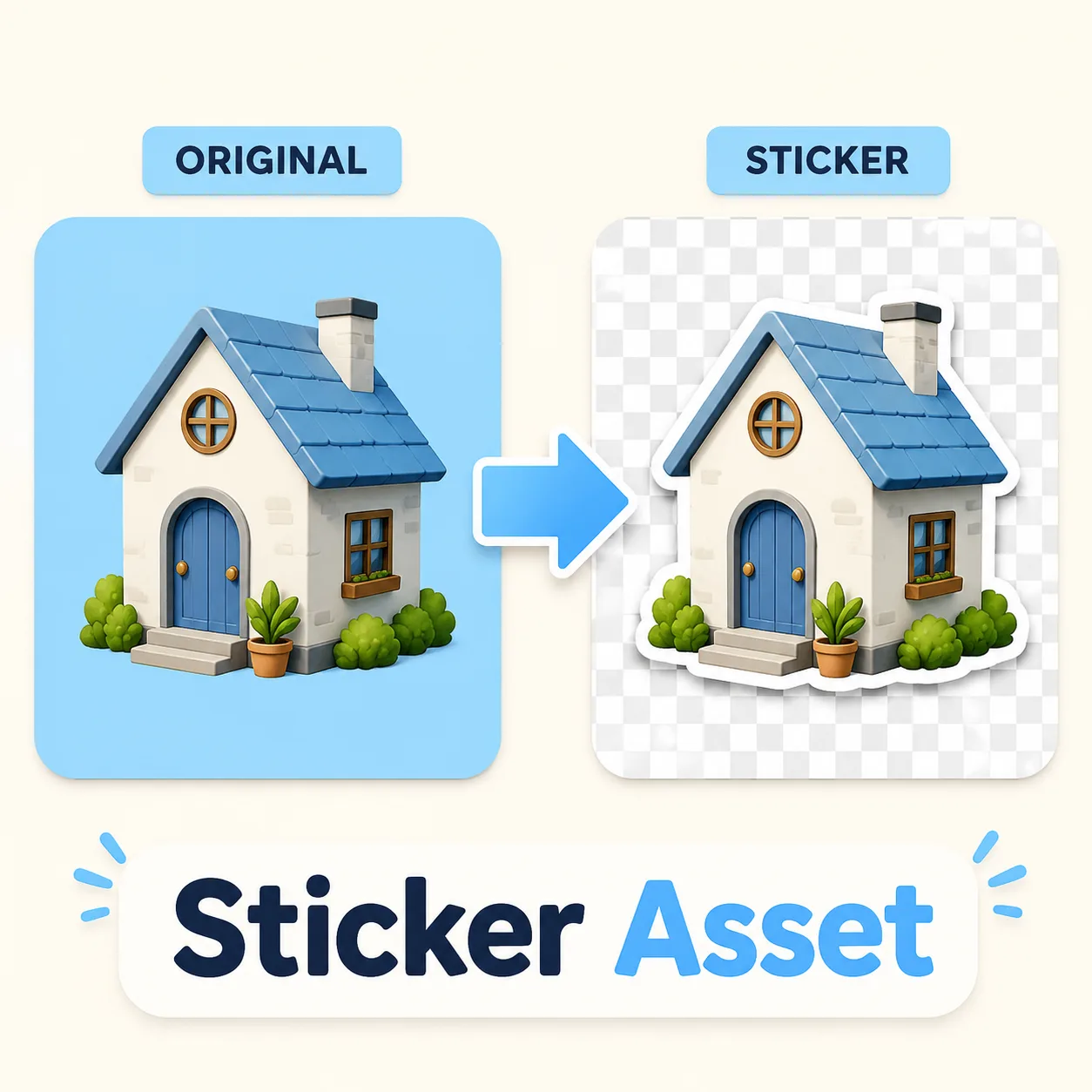 컷아웃
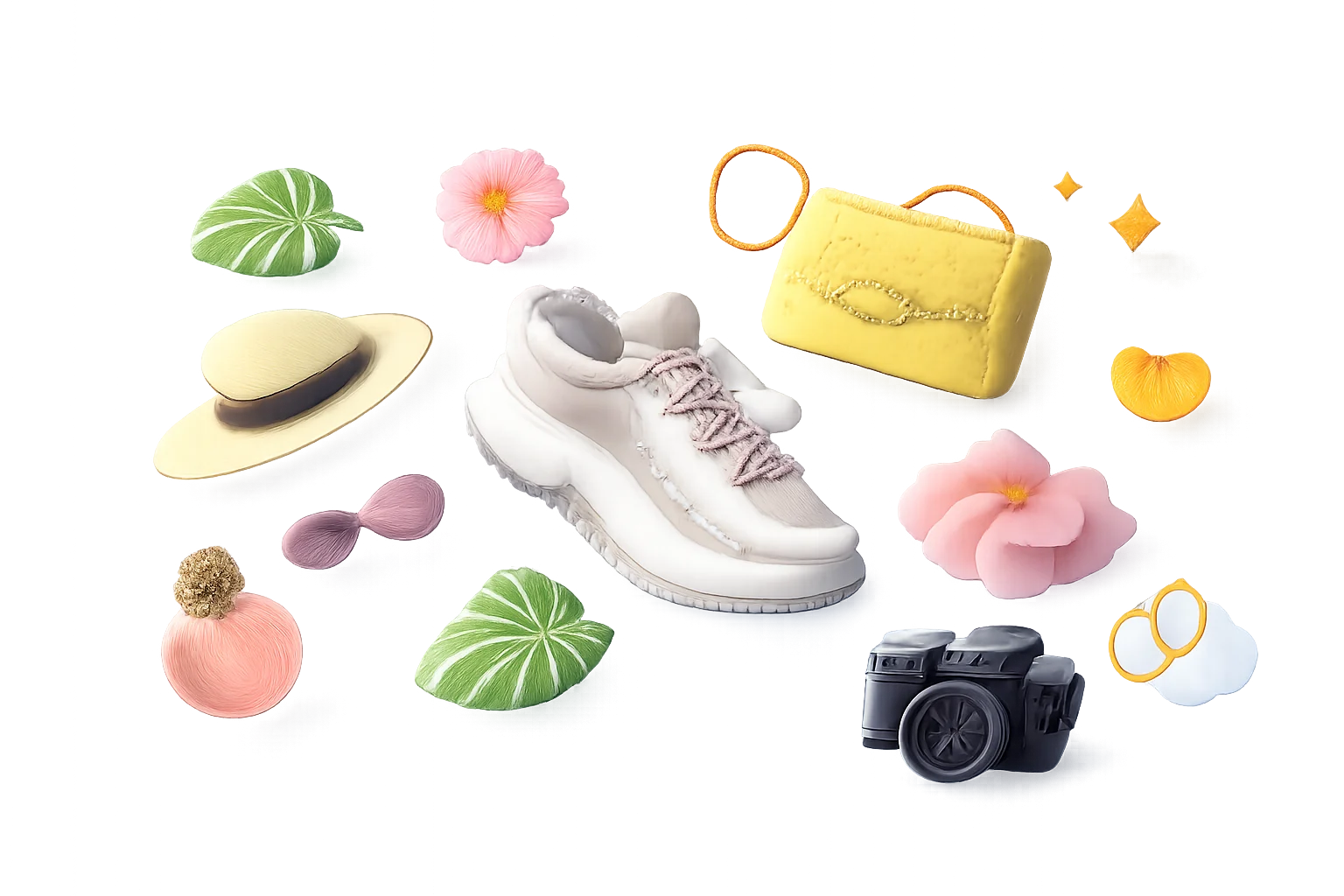
컷아웃스티커 팩 및 레이아웃을 위한 재사용 가능한 객체 컷아웃을 만듭니다.
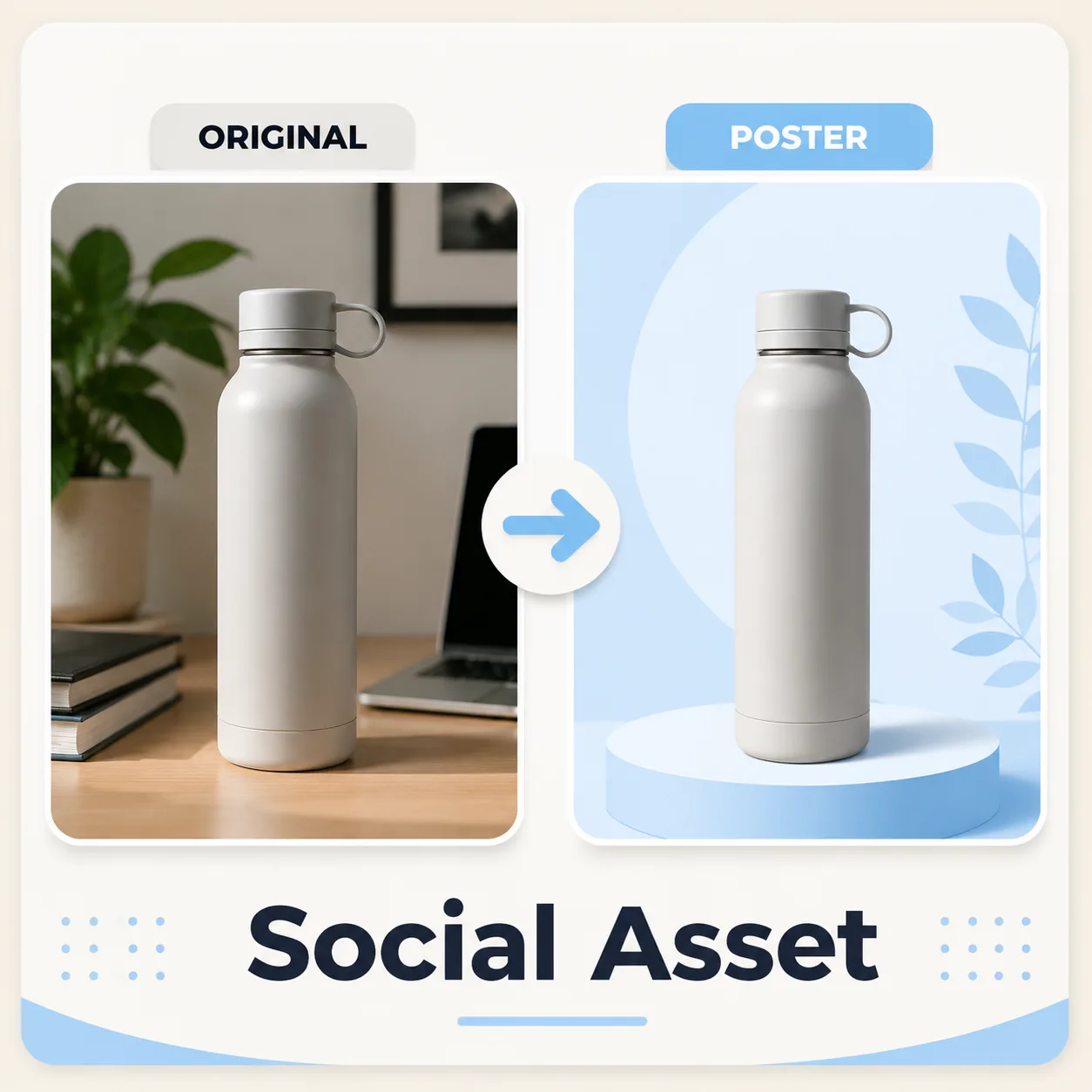 컷아웃
컷아웃깨끗한 주제를 새 소셜 미디어 캔버스에 배치합니다.
제품이나 인물이 배경에서 분리되는 결과를 확인한 뒤 다음 디자인에 컷아웃을 배치하세요.
원본컷아웃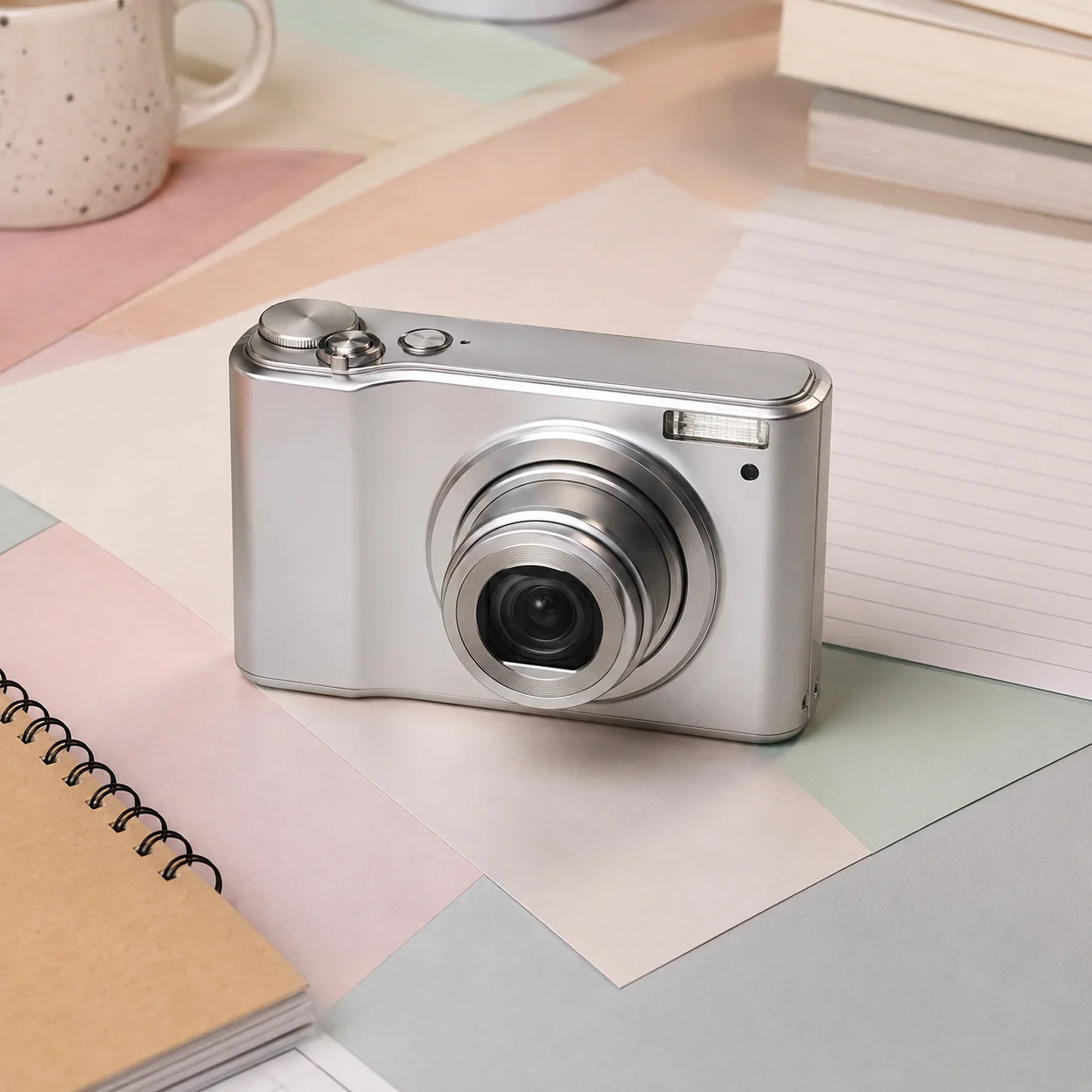 원본
원본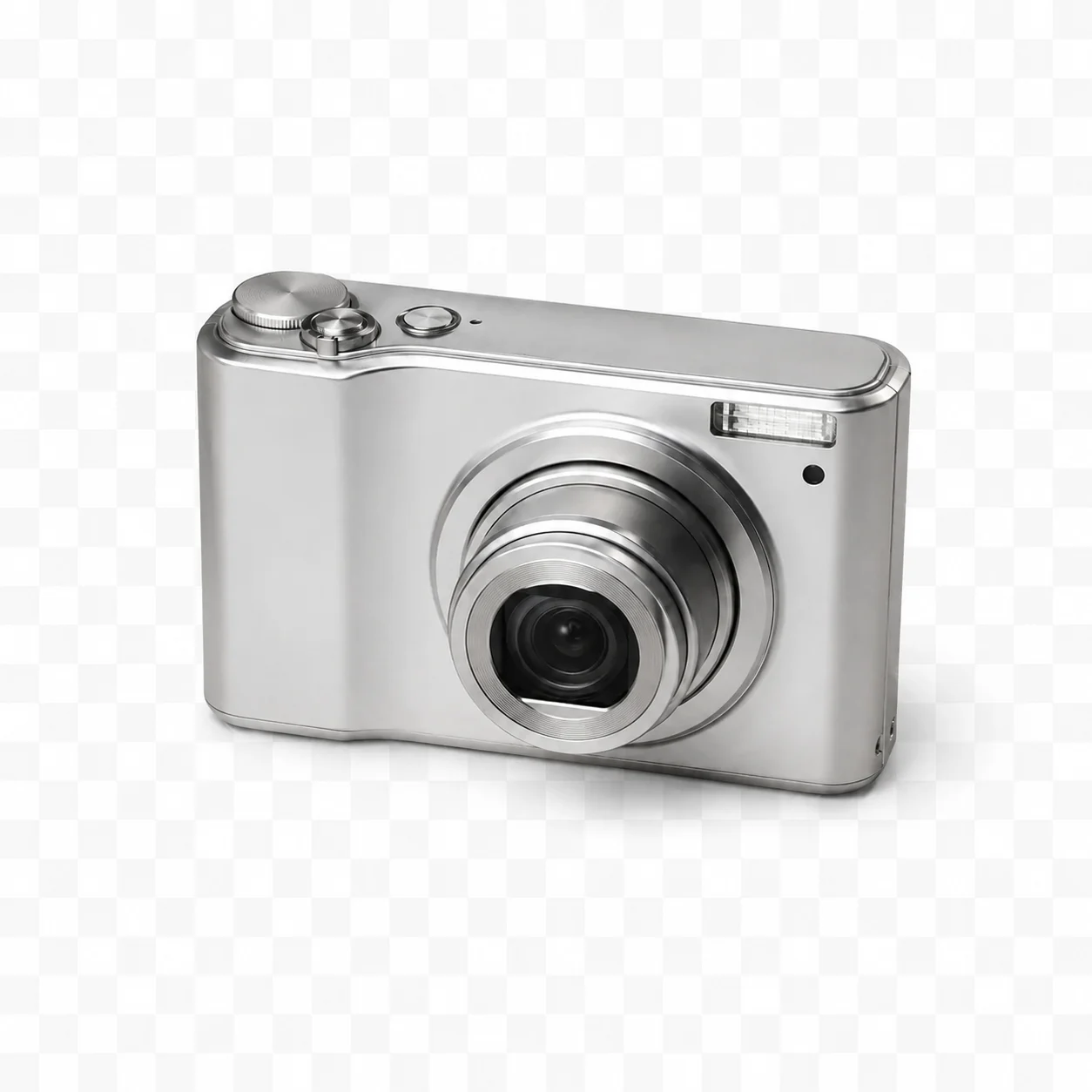 컷아웃
컷아웃 원본
원본 컷아웃
컷아웃결과는 배경에서 분리된 피사체의 미리보기입니다. 다운로드 파일의 실제 투명도를 확인한 뒤 필요한 배경이나 캔버스에 배치하세요.
재사용 가능한 제품, 인물 사진, 스티커 및 디자인 자산을 위한 기본 결과입니다.
마켓플레이스에서 요구할 때 제거 후 간단한 흰색 캔버스를 추가합니다.
배너, 랜딩 페이지 및 가벼운 소셜 게시물에 컷아웃을 배치합니다.
색상, 포스터, 그라데이션 또는 생성된 씬과 함께 컷아웃을 사용합니다.
JPG, PNG 또는 WEBP 이미지를 업로드합니다.
배경 제거를 한 번 클릭합니다.
투명 컷아웃을 다운로드합니다.
선택 사항: 새 캔버스에 배치합니다.
크리에이터 이야기
급한 소셜 콘텐츠부터 클라이언트 초안까지, 서로 다른 작업을 하는 여덟 명의 솔직한 사용 기록입니다.
“처음 열었는데도 어디서 시작해야 할지 바로 보였어요. 상품 이미지 한 장 만들려다 방향을 세 가지나 비교해 봤습니다.”
 김서윤온라인몰 운영
“결과물을 그대로 끝내기보다 초안 잡는 용도로 씁니다. 빈 화면에서 시작할 때보다 클라이언트와 이야기할 거리가 훨씬 빨리 생겨요.”
 박준호프리랜서 디자이너
“매주 비슷한 콘텐츠를 만들다 보니 설정을 다시 맞추는 시간이 아까웠는데, 반복 작업이 꽤 가벼워졌습니다.”
 유리콘텐츠 에디터
“업로드한 원본과 변화를 같이 볼 수 있어서 좋아요. 느낌으로 판단하지 않고, 무엇이 남고 달라졌는지 확인할 수 있습니다.”
 이도현포토그래퍼
“런칭 주간에 처음 써 봤는데 흐름이 단순해서 막히는 구간이 없었어요. 급할수록 이런 기본기가 크게 느껴집니다.”
 민지소셜 미디어 매니저
“보기 좋은 데모보다 실제로 자주 손이 가는지가 중요하잖아요. 아이디어를 빠르게 눈앞에 꺼내는 도구로 잘 쓰고 있습니다.”
 Alex K.인디 메이커
“예시를 먼저 보고 작업하니 요청 문장도 더 구체적으로 쓸 수 있었어요. 팀에 방향을 설명하기도 쉬워졌고요.”
최은채브랜드 기획“밖에서 휴대폰으로 초안을 만들고 사무실에서 마무리합니다. 작은 작업을 미루는 일이 확실히 줄었어요.”
하늘1인 크리에이터AI 배경 제거기
이미지에서 주요 주제를 감지하고, 배경에서 분리하며, 투명, 흰색 또는 사용자 정의 배경에 배치할 수 있는 깔끔한 컷아웃을 만듭니다.
워크플로는 피사체 분리를 목표로 하지만 PNG라고 해서 알파 채널이 있다고 단정할 수 없습니다. 다운로드한 파일의 투명도를 확인하고 필요하면 편집기에서 마무리하세요.
주제와 배경 사이에 가시적인 대비가 있는 인물 사진이 가장 잘 작동합니다. 머리카락, 털, 유리 및 모션 블러는 더 어려울 수 있으므로 최종 자산을 사용하기 전에 항상 가장자리를 미리보기하세요.
네. 제품 컷아웃은 강력한 사용 사례입니다. 가능하면 깨끗한 소스 사진을 사용하고, 극단적인 그림자를 피하며, 마켓플레이스에 따라 투명 또는 흰색 배경 버전을 내보내세요.
디자인에 사용하기 전에 다운로드 파일에 실제 알파 채널이 있는지 확인하세요. 목적지에 맞는 형식과 배경을 선택하고 필요하면 편집기에서 캔버스를 마무리하세요.
네. 원본 배경을 제거한 후 단색, 그라데이션, 제품 씬, 포스터 레이아웃 또는 소셜 미디어 캔버스에 컷아웃을 배치할 수 있습니다.
피사체가 온전히 보이고 초점이 선명하며 압축이 적은 이미지를 권장합니다. 심한 흐림, 과도한 크롭, 반복 편집된 파일은 결과 확인을 어렵게 합니다.
원본과 확대 비교해 인물 정체성, 가장자리, 글자, 손, 질감과 구도를 확인하세요. 중요한 작업이라면 원본 파일도 반드시 보관해야 합니다.
✦ 하나의 전문 도구로 다음 창작 시작하기
제품 사진, 인물 사진, 프로필 이미지 및 디자인 자산에서 깔끔한 컷아웃으로 배경을 제거하세요.
시작하기: AI 배경 제거기