
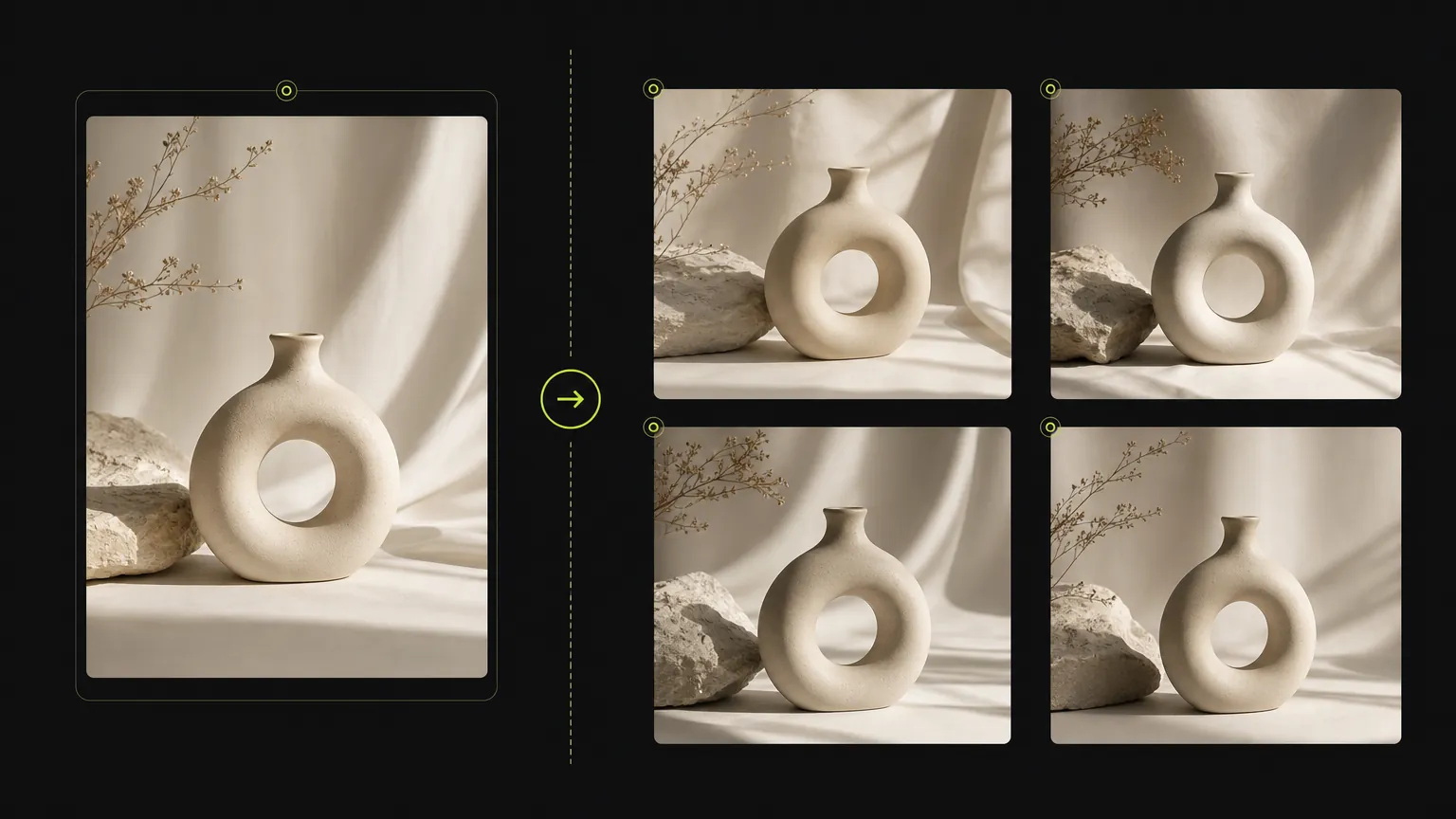
Case 1
AI Image Generator Online prompt workflow
Turn a simple product direction into a polished ecommerce or campaign visual.
Start with a clear prompt, then adjust model, ratio, quality, and reference inputs in the same workspace.
Create images with AI Image Generator Online while keeping the prompt, reference inputs, aspect ratio, and supported model controls in one place.
Upload a source image when product details, composition, or visual direction need to stay close to a reference.
The generator exposes the options supported by this model so the page stays practical instead of mixing unrelated controls.
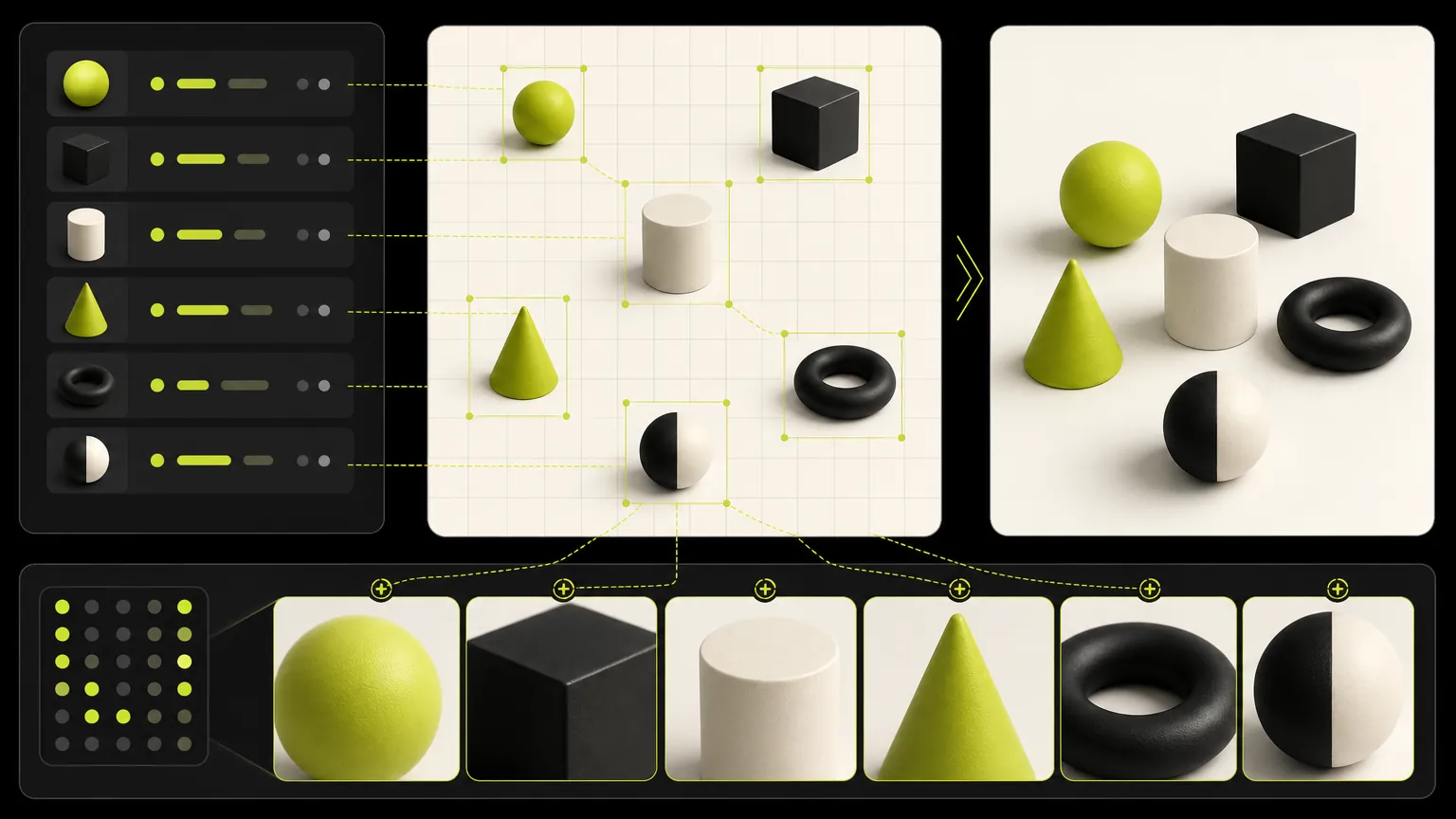
Keep one brief stable while comparing model strengths, aspect ratios, resolution options, and output quality.
Browse AI Image Generator Online prompt examples and reuse the structure before editing the subject, scene, style, or production format.
Generated cases
These cases are intentionally broad because the default page is for deciding which dedicated model workflow should come next.
Case 1
Turn a simple product direction into a polished ecommerce or campaign visual.
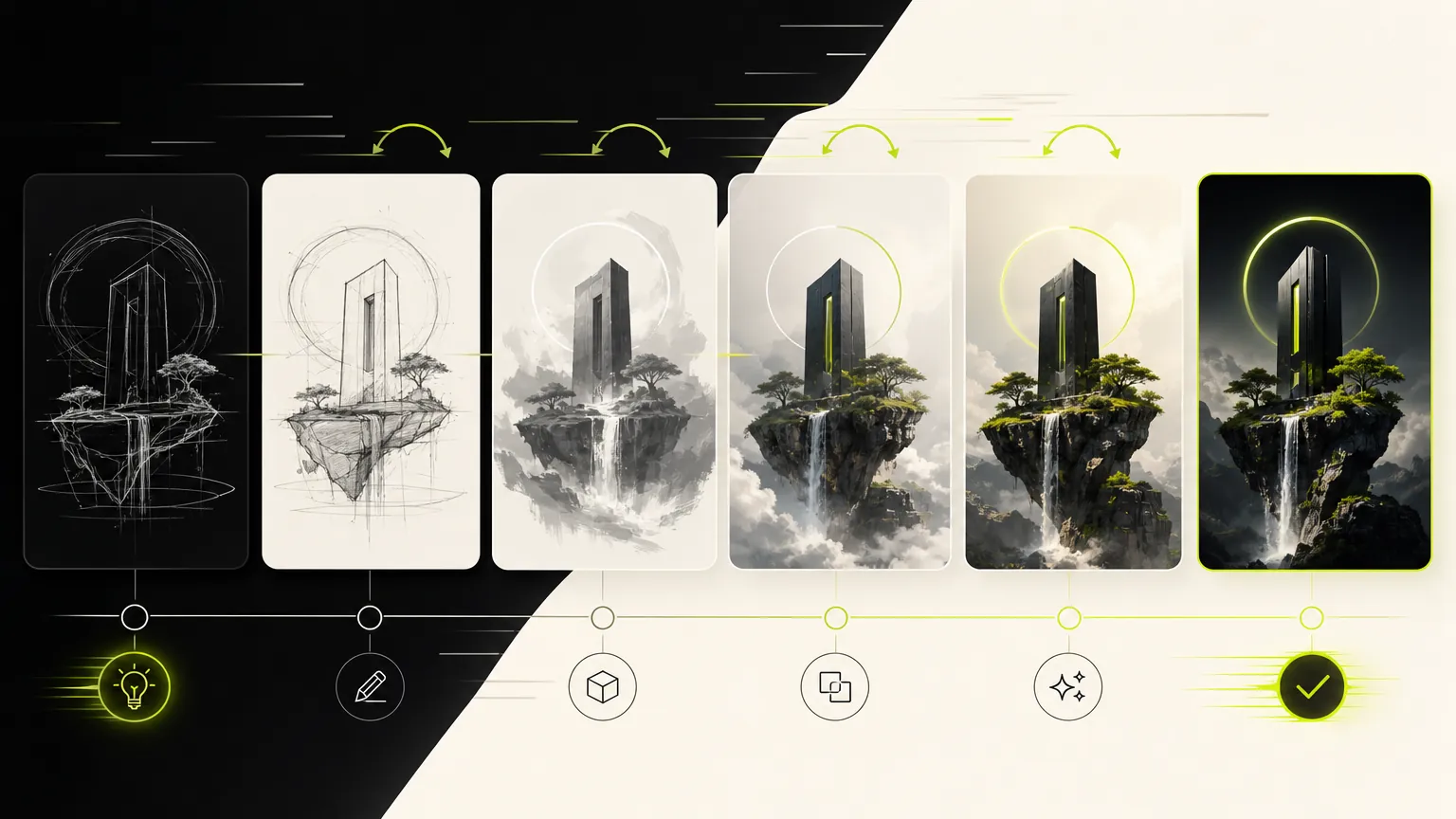
Case 2
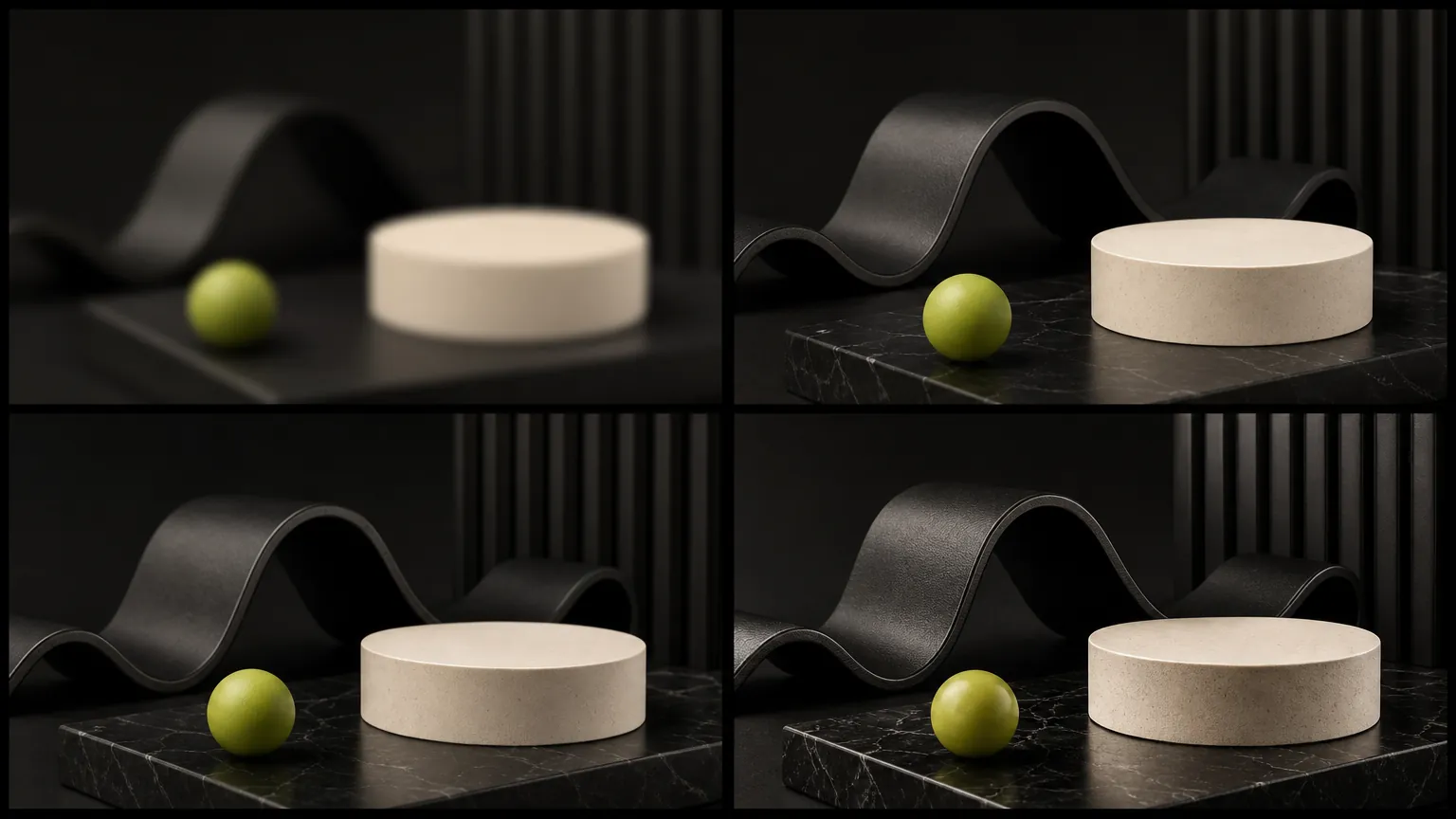
Compare visual directions before choosing a dedicated model page.
Model gallery
The default generator keeps the workflow broad: prompt, reference, ratio, and model selection stay close together so you can compare directions quickly.
Prompt
1 / 4Write and refine prompts for image generation.
Planning notes
Keep one prompt stable, change one model variable at a time, and move to the dedicated model page when a clear strength appears.
AI Image Generator Online is useful when the core task is image generation for one model rather than broad model comparison. Keep the prompt concrete: name the subject, output use, layout, style, reference requirements, and any constraints that should stay stable.
Start with the output goal, then add subject details, composition, lighting, aspect ratio, and reference-image rules. This keeps the model workflow focused and makes the generator easier to use.
Choose AI Image Generator Online when its supported controls and output profile match the job. If the result needs a different speed, quality, reference, or resolution tradeoff, compare another dedicated model page after saving the prompt structure.
Use these checks before rewriting the whole prompt. A small, controlled correction makes it easier to see why a AI Image Generator result improved or drifted.
Move the required subject, format, and must-keep constraint to the start. Remove conflicting style instructions, then change one requirement per generation.
State exactly what the reference controls—identity, pose, layout, product shape, or style—and what AI Image Generator may change. Confirm the selected workflow accepts that reference input.
Shorten the copy, provide the exact wording, define the reading order, and describe the number and position of panels or text blocks before adding decorative style.
Choose the supported resolution or quality option that matches the final format. Fix composition at a lower-cost draft stage before requesting a larger final output.
Creator notes
Eight grounded snapshots from everyday image work—from quick social posts to client-ready drafts.
“The dedicated generator pages make it much easier to choose the right model for a campaign instead of guessing from a dropdown.”
 Mia ChenCreative Strategist
“We use the generic page to test quickly, then move to the model page when we want a clean landing page for a specific workflow.”
 Noah PatelIndie Founder
“Reference uploads plus model-specific controls cut down our iteration time a lot, especially for product mockups and launch assets.”
 Ava RomeroBrand Designer
“The page makes model choice feel practical. We can brief an image, test a direction, and keep examples close to the generator.”
 Ethan BrooksContent Lead
“For ecommerce visuals, the reference workflow helps us keep product cues stable while exploring different scenes.”
 Lina ZhaoMarketplace Operator
“I like that the page is not just a blank tool. The examples below the generator help our team write better prompts.”
 Owen MillerAd Creative Manager
“The focused model pages are useful for clients because the controls, examples, and expected output are all in one place.”
 Priya ShahDesign Consultant
“It gives us a fast way to compare visual ideas before spending time on a full campaign design pass.”
Theo GrantStartup FounderUse categories to find reusable prompt structures before narrowing into a single model page.
Use these checks before rewriting the whole prompt. A small, controlled correction makes it easier to see why a AI Image Generator result improved or drifted.
✦ Explore an image model in one workspace
Generate images from prompts or reference photos, switch models, set ratios and quality, and create finished visuals in one online workspace.
Start with AI Image Generator