

 Before
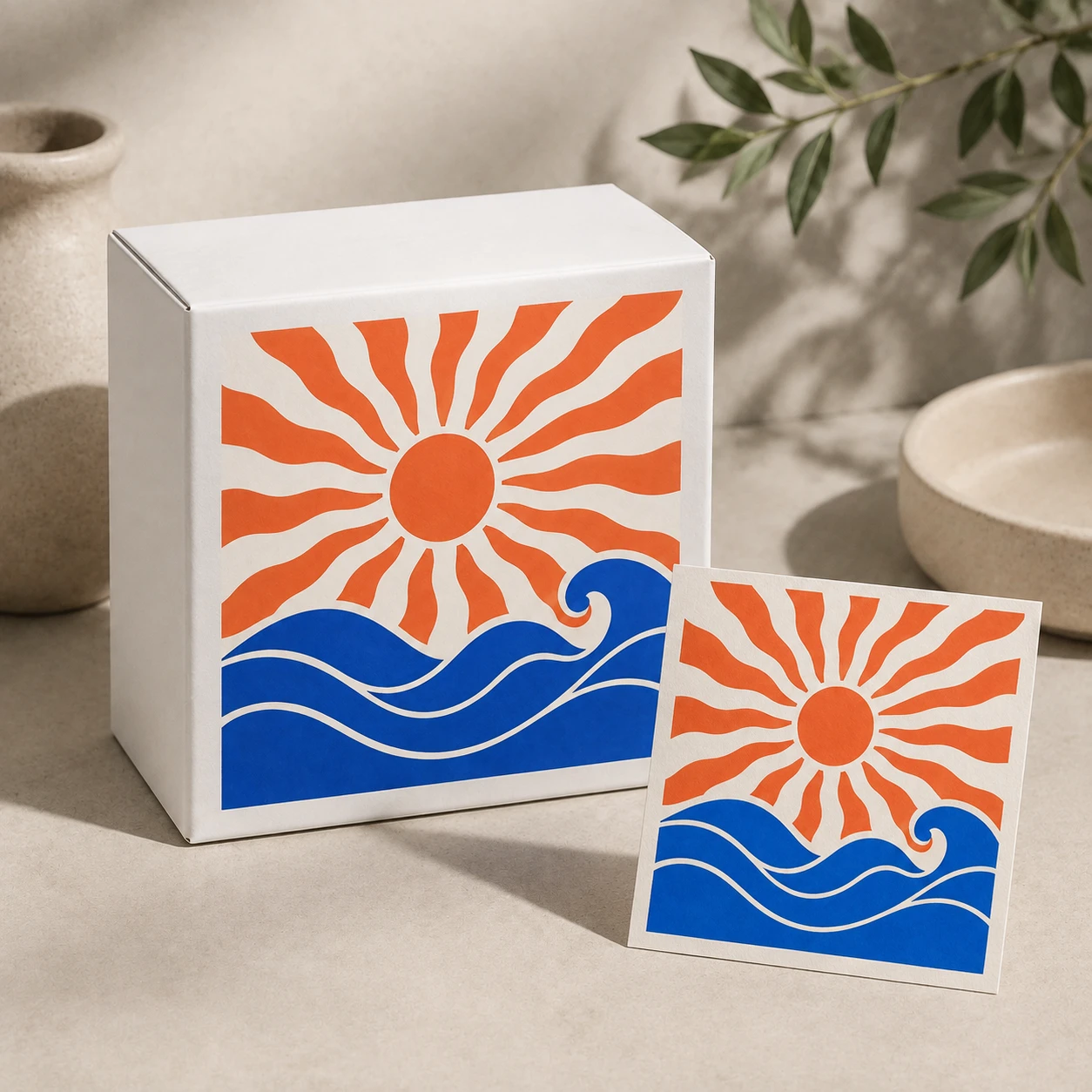 After
AfterCandle label concept
A package reference is placed in a quiet lifestyle scene for an early product presentation.
Use an AI mockup generator to visualize a design on a product, package, garment, screen, or presentation surface. Upload a reference and describe the scene, then check labels, proportions, and materials before publishing.
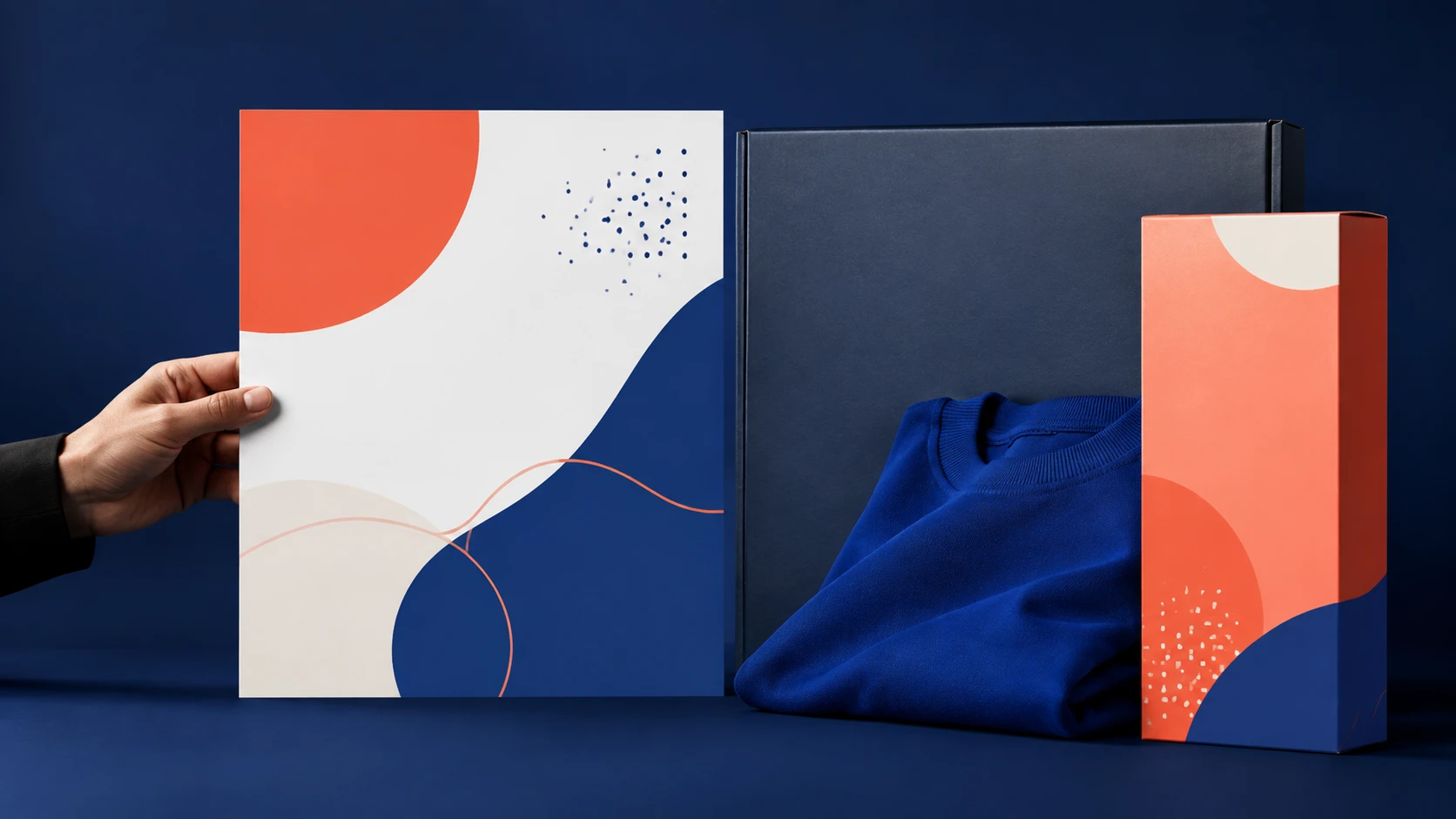
Use an AI mockup generator to visualize a design on a product, package, garment, screen, or presentation surface. Upload a reference and describe the scene, then check labels, proportions, and materials before publishing.
Upload a logo, artwork, package, garment, or product photo that should guide the scene.
Name the product type, angle, environment, material, and presentation mood.
Check the design placement, small text, proportions, edges, and product details before using the image.
Before / After
BeforeAfterA package reference is placed in a quiet lifestyle scene for an early product presentation.
 Before
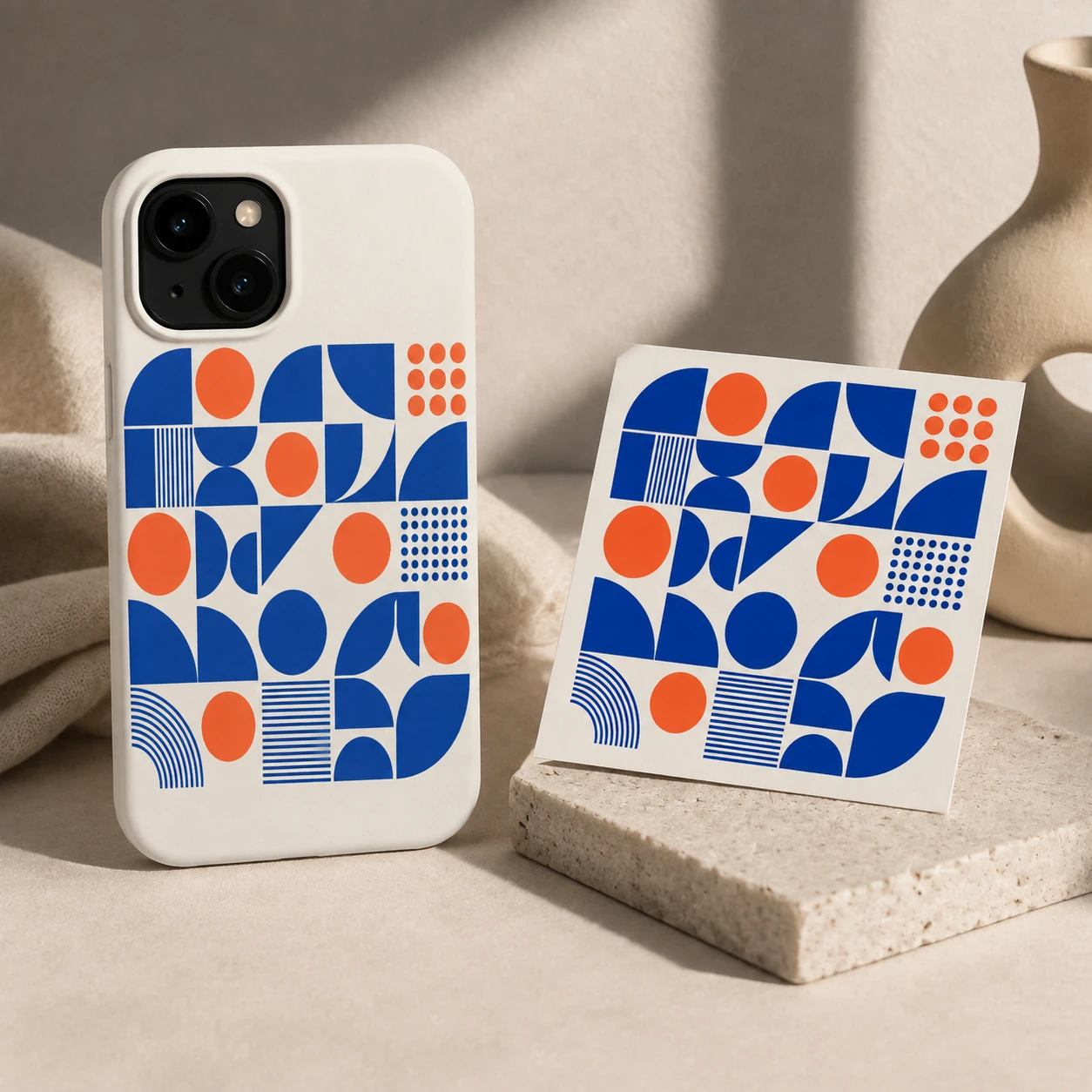 After
AfterA clothing graphic is explored on a simple garment view before a campaign shoot.
 Before
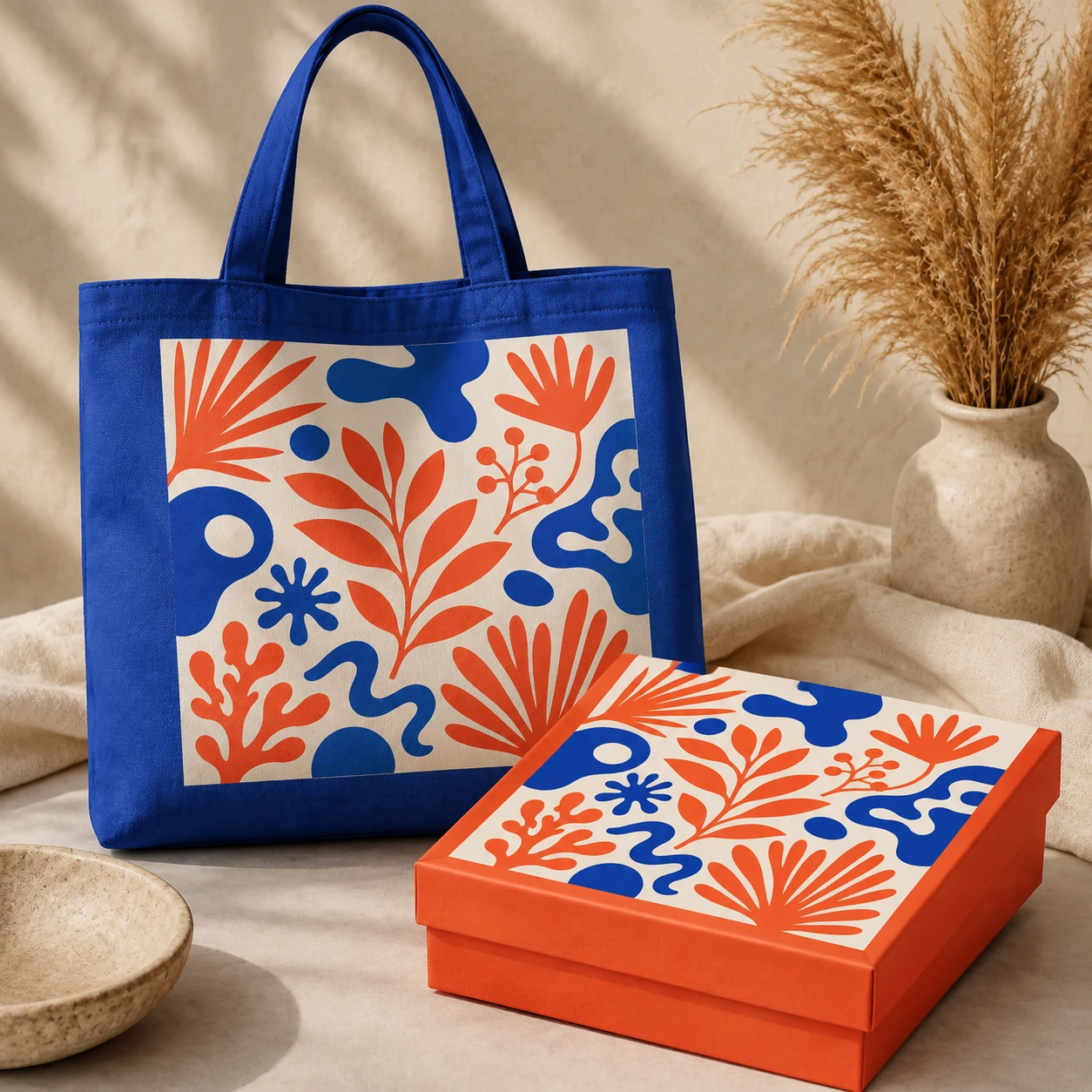 After
AfterA screen design is visualized in a desk setting to support a pitch or design review.
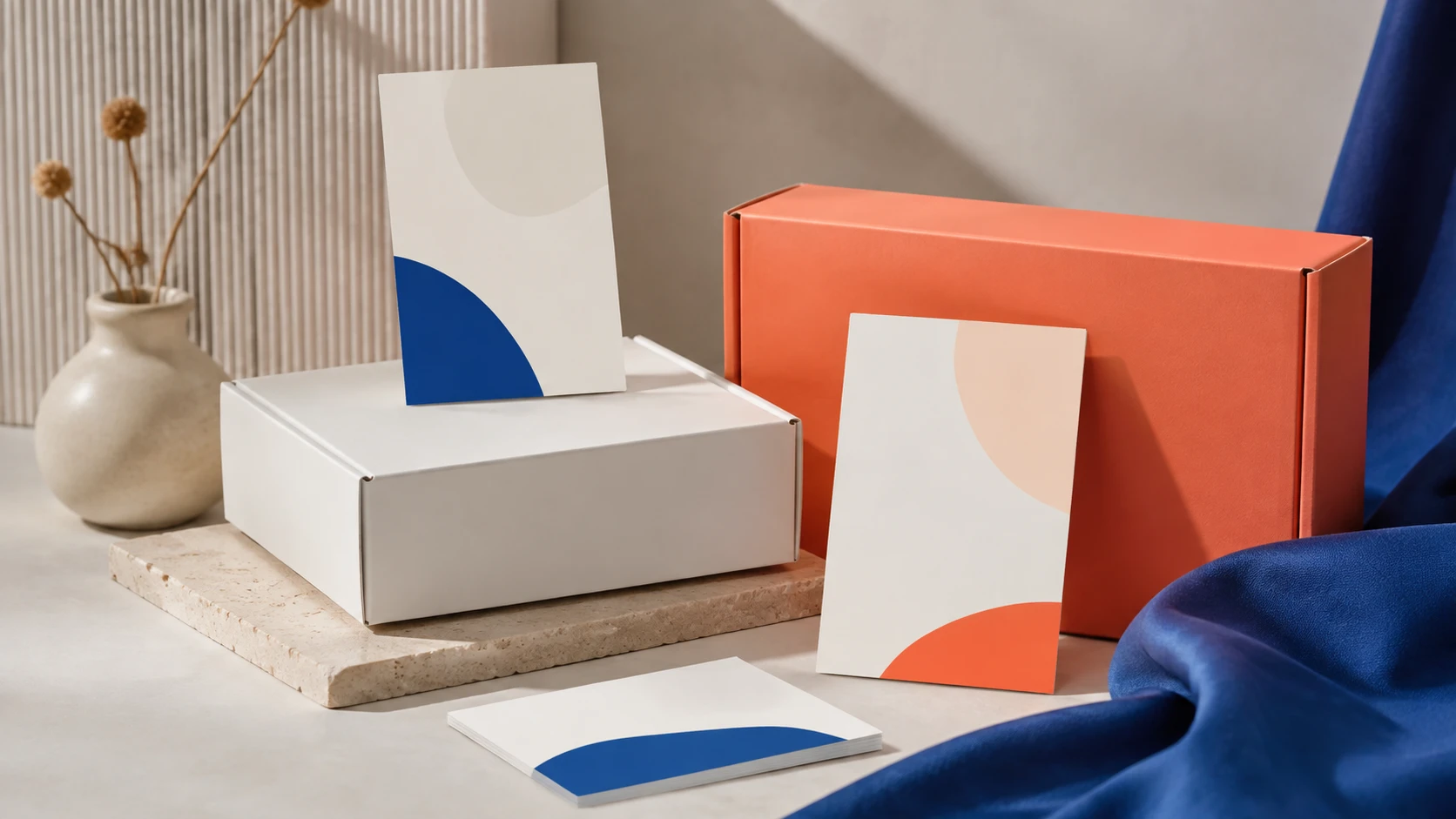
Show where a design may live before investing in production photography or a complete presentation system.
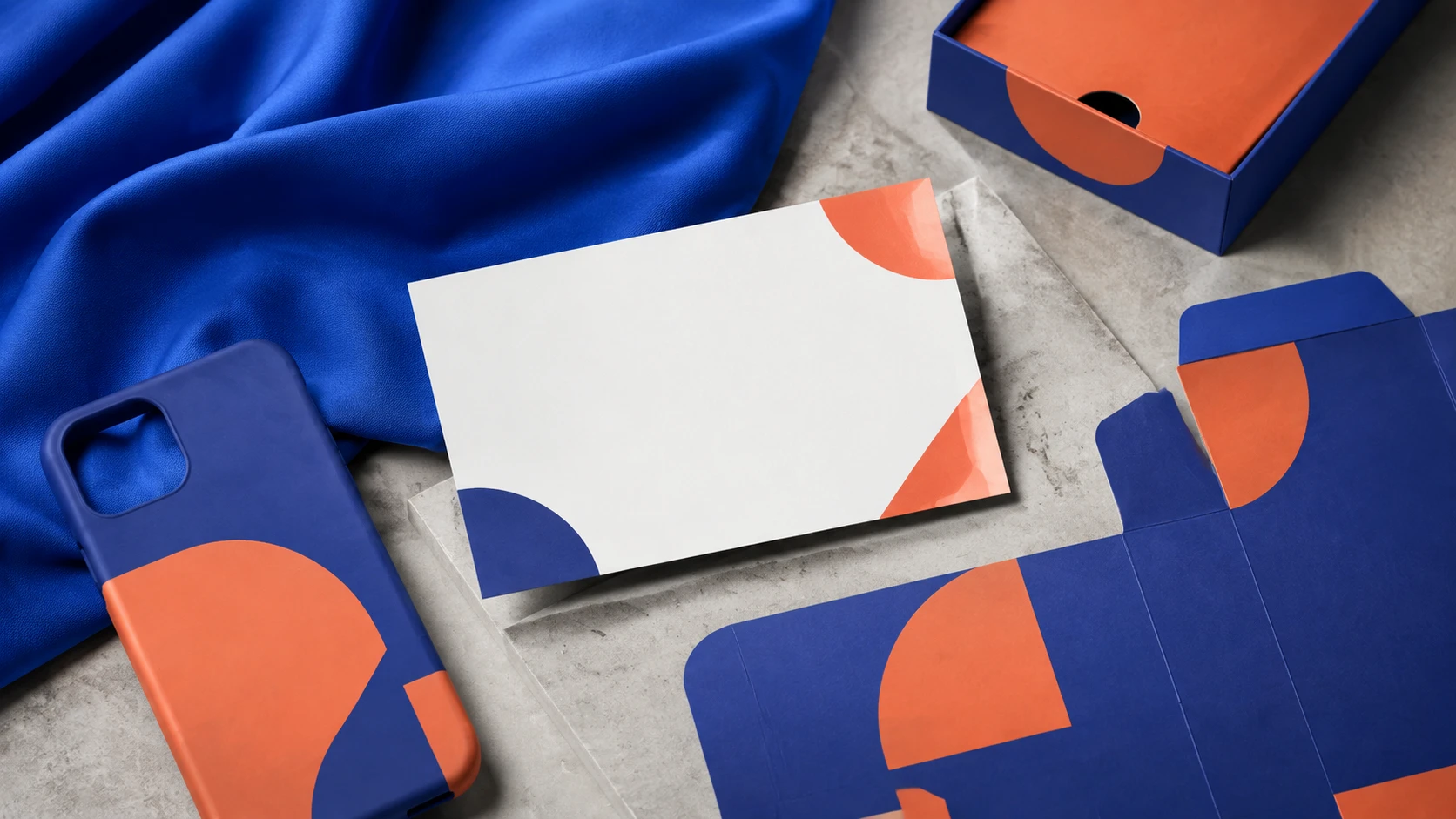
A clean upload gives the generator a better starting point, while the prompt sets the surrounding material, light, and mood.
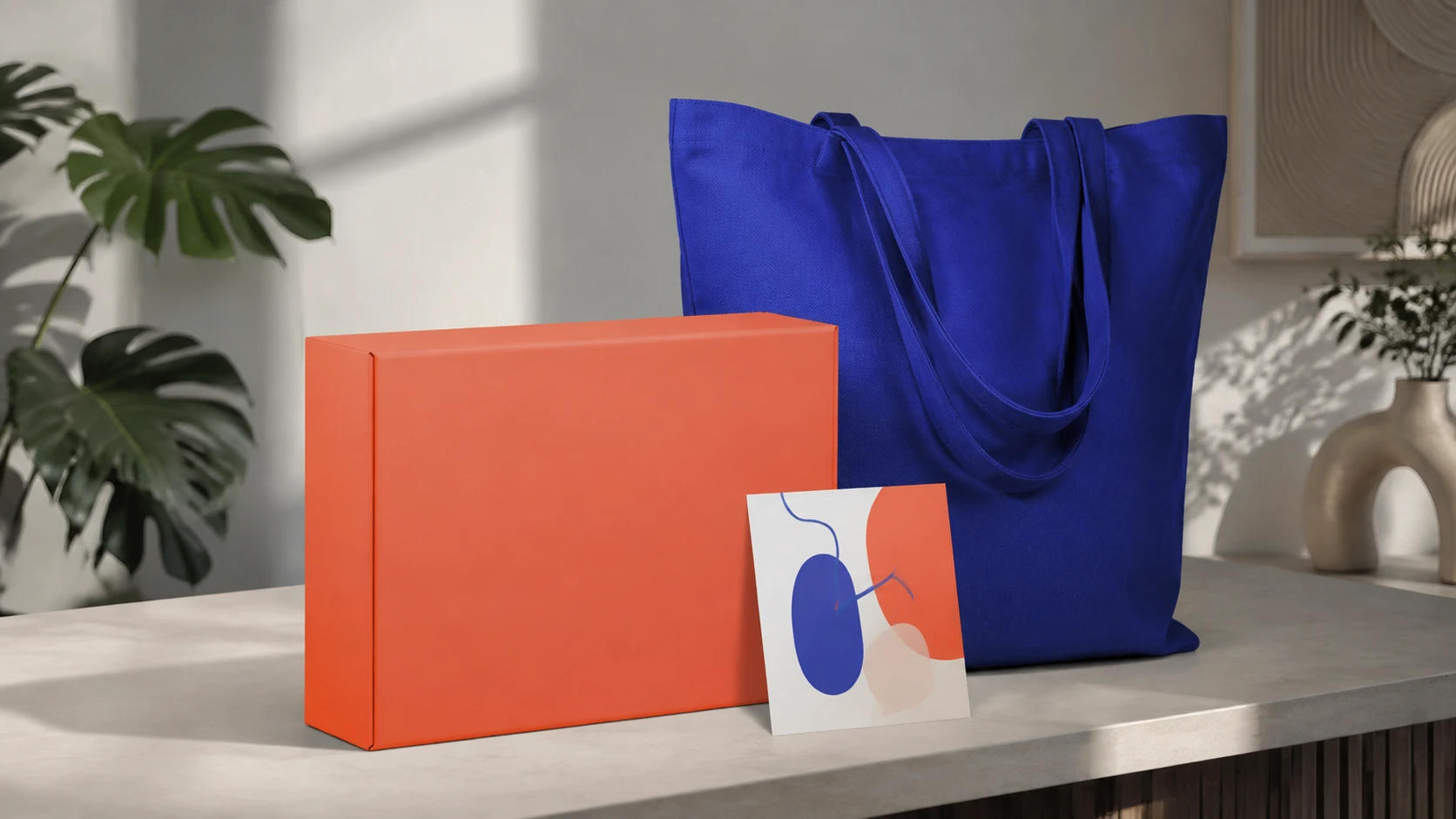
AI mockups can change small labels, edges, and proportions. Use the output for review until those details have been verified.
A closer look
This tool is for presentation concepts and design review. It does not guarantee exact packaging text, product geometry, color matching, or manufacturing accuracy.
Why it works
Start with an existing design or product photo instead of describing every detail from scratch.
Compare front, angled, flat-lay, and lifestyle directions for the same idea.
Give teams a visual conversation starter before a final photo or production workflow.
Creator notes
Eight grounded snapshots from everyday image work—from quick social posts to client-ready drafts.
“I came in for one quick product image and stayed to try three directions. The workflow never made me feel like I needed a tutorial first.”
 Maya R.E-commerce manager
“The controls are restrained in a good way. I can get a useful draft, download it, and finish the last ten percent in my usual design app.”
 Jon BellFreelance designer
“What won me over was consistency. I can repeat the same brief without rebuilding every setting from scratch.”
 Priya S.Content lead
“The first result is often close enough to start a real conversation with a client. That alone saves me a round of mood-board work.”
 Owen K.Independent maker
“I tested it during a busy launch week. It was fast, clear, and I always knew what the next click would do.”
 Nina ParkSocial media editor
“Being able to keep the source image visible matters to me. I can judge what changed instead of guessing from memory.”
 Luis M.Photographer
“It feels designed for actual production work, not just a flashy demo. The examples are practical and the output is easy to hand off.”
 Sophie ChenBrand coordinator
“I mostly use it for small weekly assets. It turns the blank-page moment into something I can react to in a couple of minutes.”
 Tom W.Newsletter creator
AI Mockup Generator
You can start with artwork, a logo, a package image, a garment graphic, or a screen design that you have the right to use.
Not always. Inspect small text, logos, edges, and proportions carefully; use a verified design workflow for final product or storefront images.
Yes, describe the garment, viewpoint, material, and scene. Review folds and artwork placement before treating the image as a reliable product representation.
A mockup focuses on placing a design or product idea into a presentation surface. A background workflow focuses on changing the surrounding scene of an existing product photo.
Use it only after checking that it accurately represents the product and complies with the marketplace rules. A concept image may not be enough for a factual listing.
Try a clearer reference and describe the surface and viewpoint more directly. Perspective, folds, and reflective materials can still change the placement.
Use a sharp, lightly compressed image with the full subject visible. Heavy blur, tight cropping, or repeatedly edited files make important details harder to preserve and review.
Compare the output with the source at full size. Check identity, edges, text, hands, texture, and composition, and keep the original file for any important use.
✦ One focused tool, ready for your next idea
Use an AI mockup generator to visualize a design on a product, package, garment, screen, or presentation surface. Upload a reference and describe the scene, then check labels, proportions, and materials before publishing.
Start with AI Mockup Generator