
Portrait
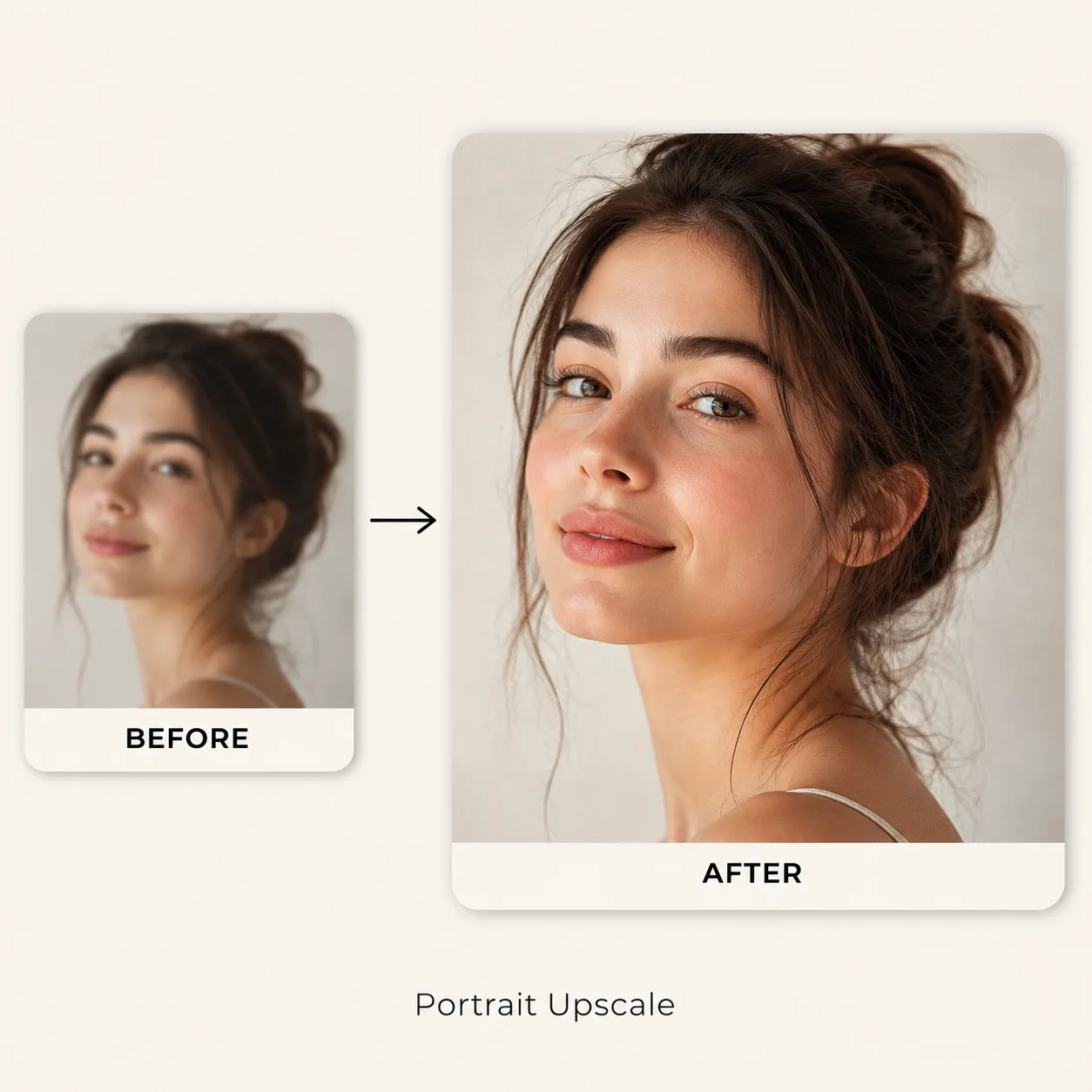
Soft face detail to cleaner edges
Upscale photos, portraits, product shots, screenshots, and anime art for a larger, clearer draft while allowing for small changes in reconstructed details.
Soft face detail to cleaner edges
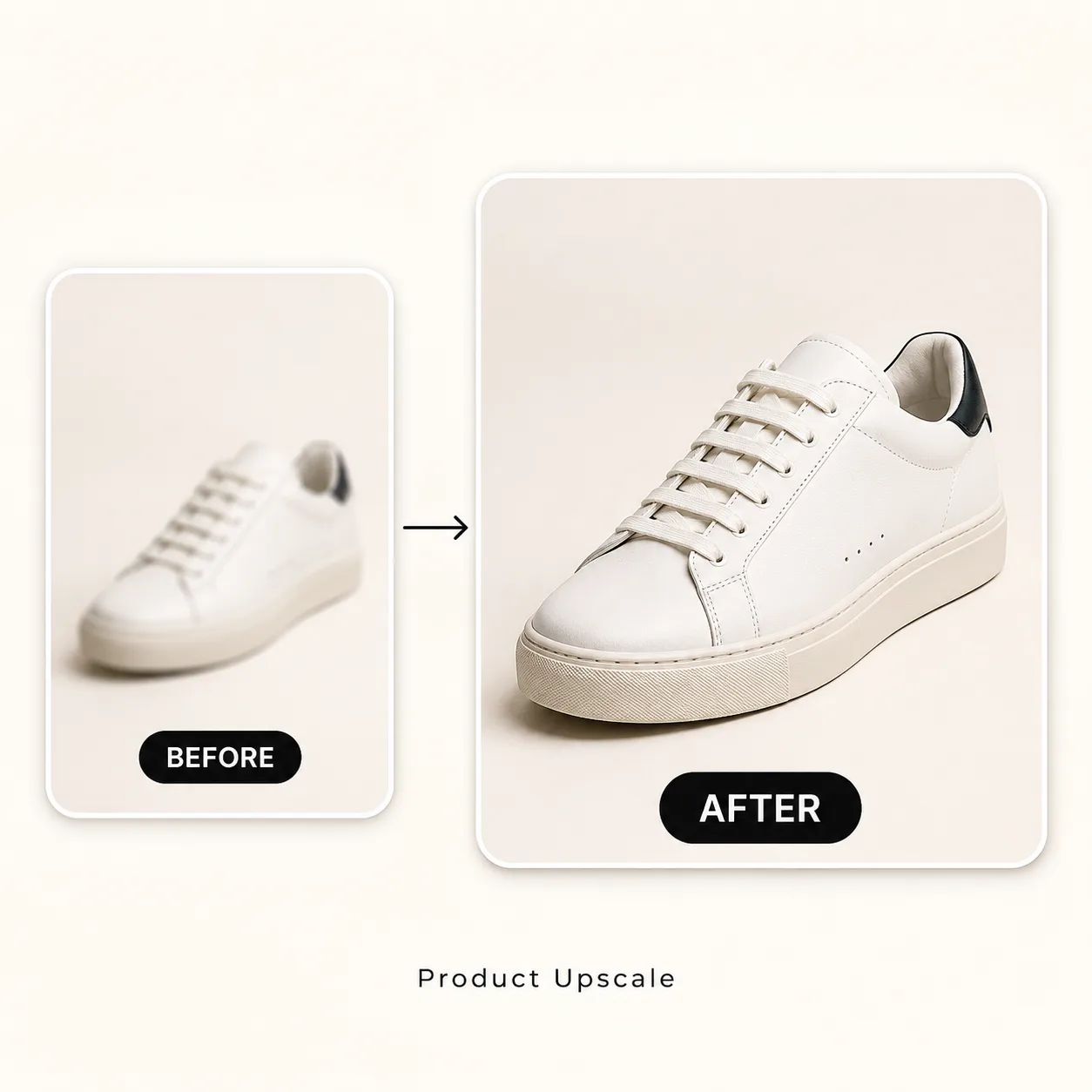
Small catalog image to sharper card
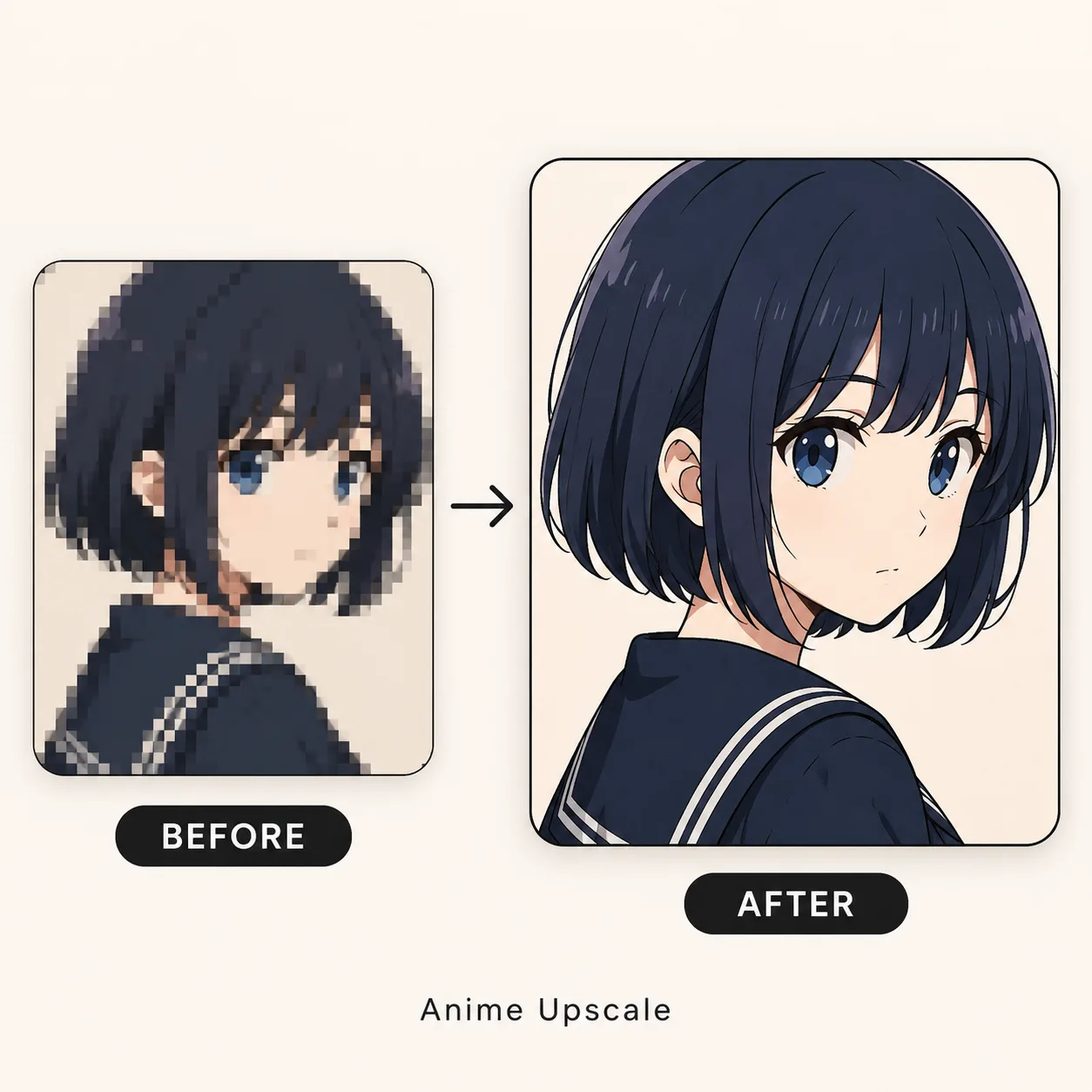
Low-res art to cleaner line work
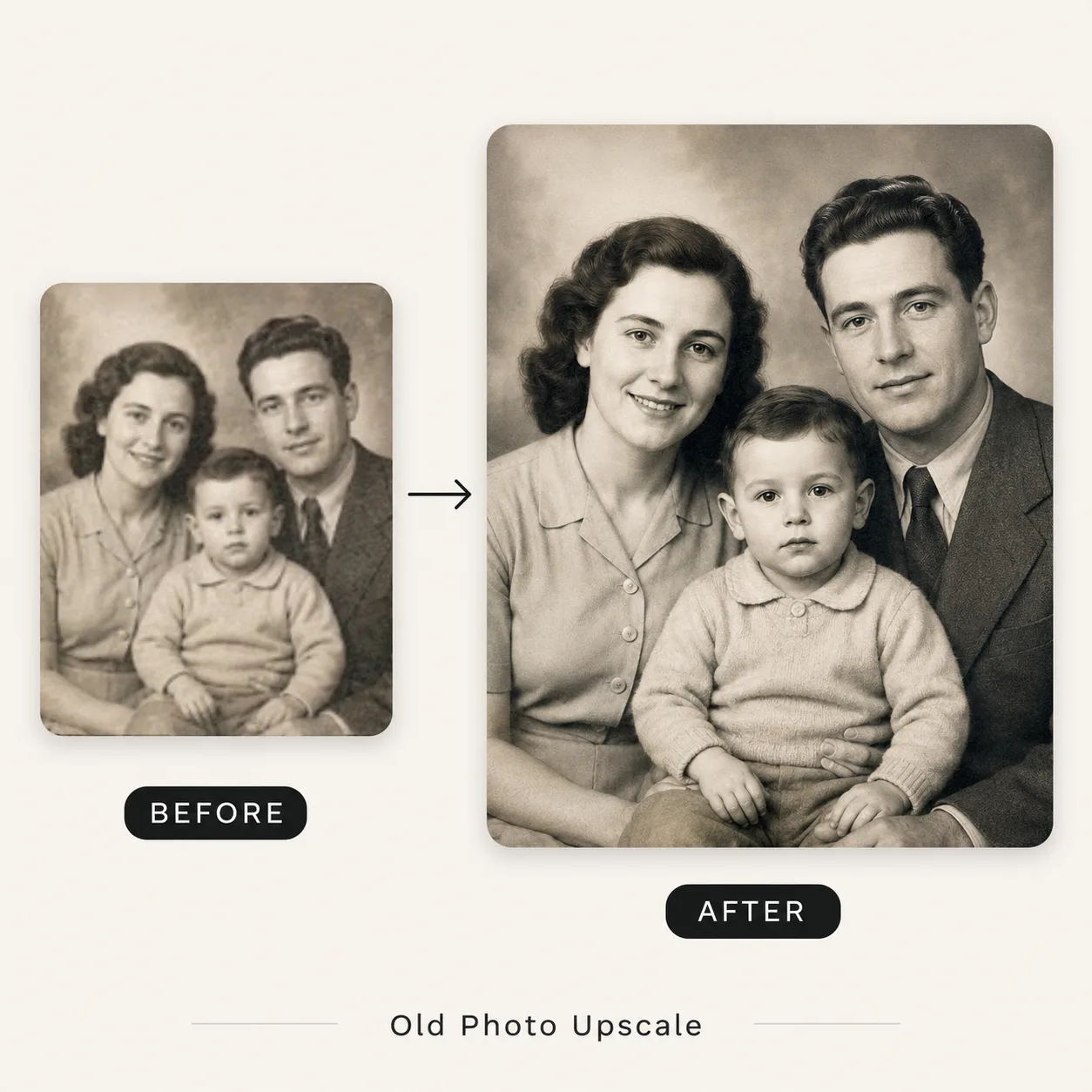
Compressed memory to usable print
Real upscale cases
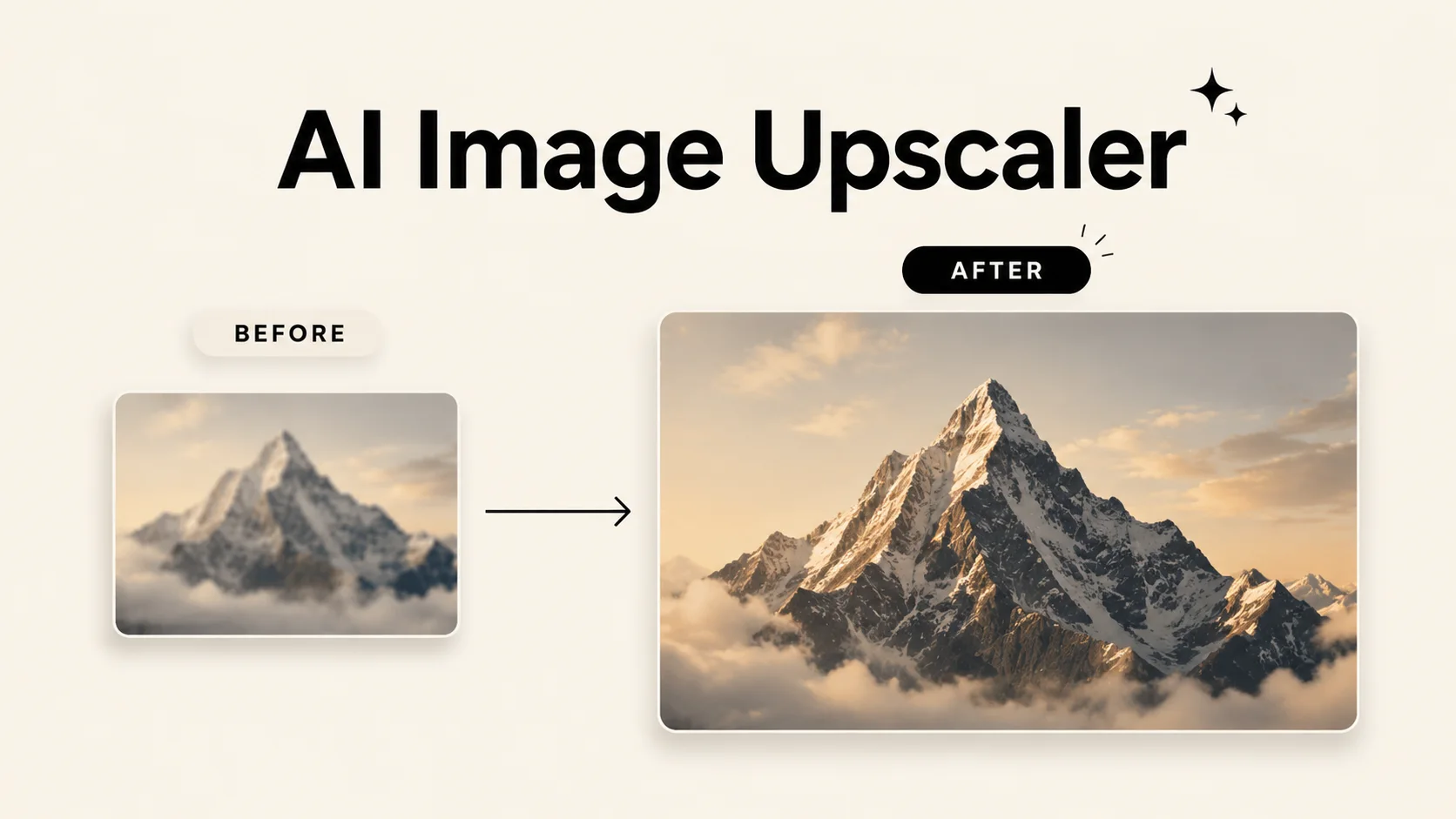
Users want to know whether the tool keeps the same image while improving detail. These cases cover product photos, portraits, and illustrations.
 Before
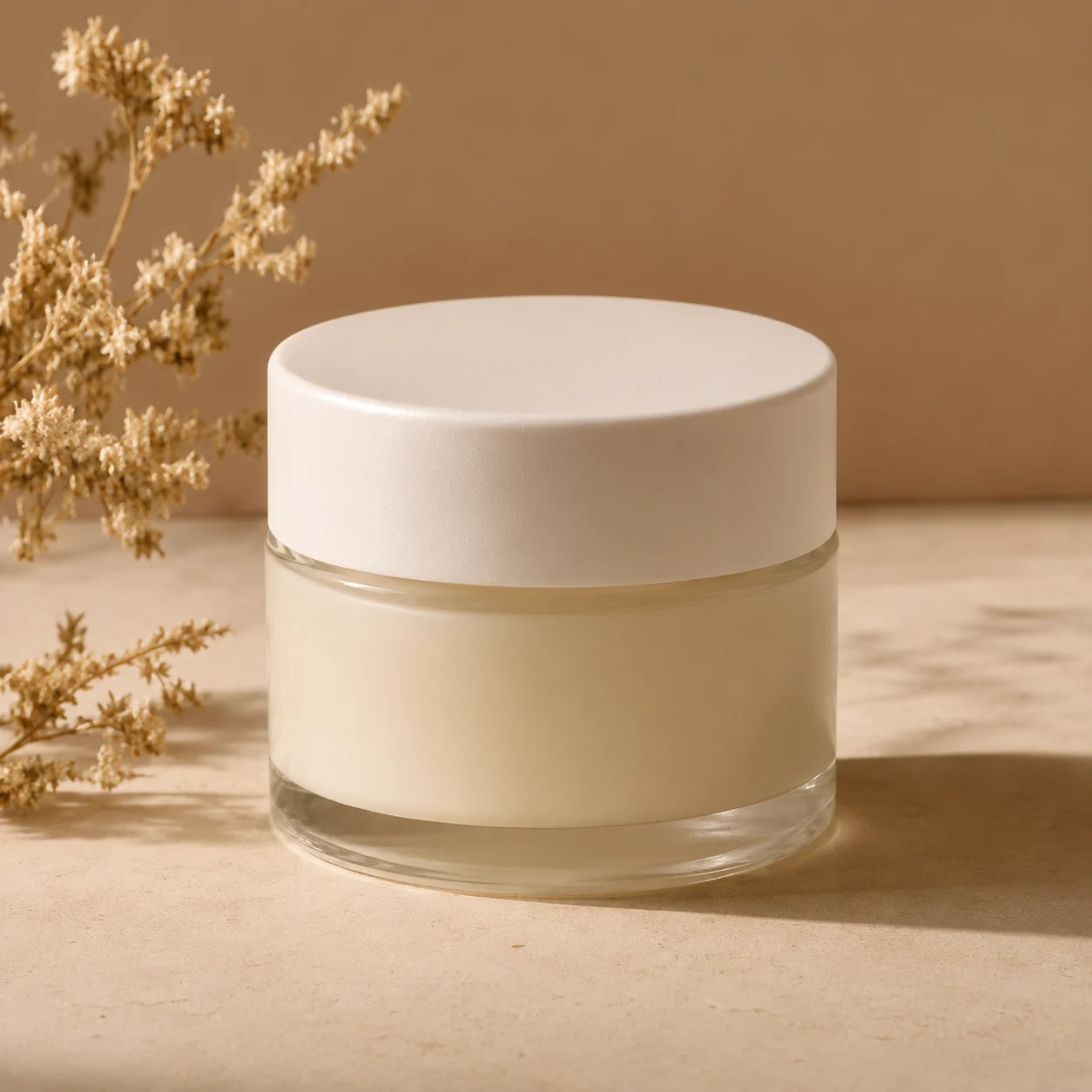 After
After Before
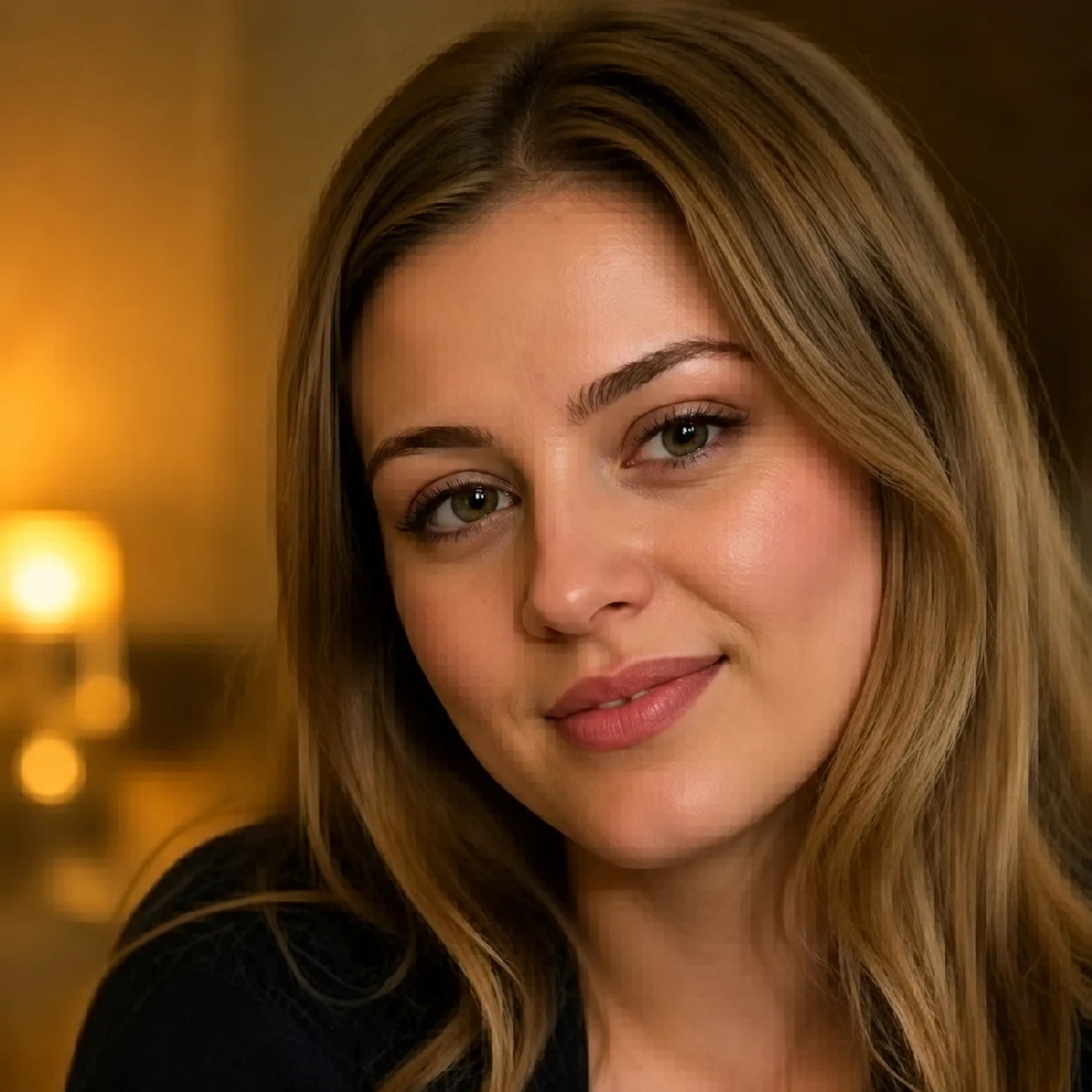 After
After Before
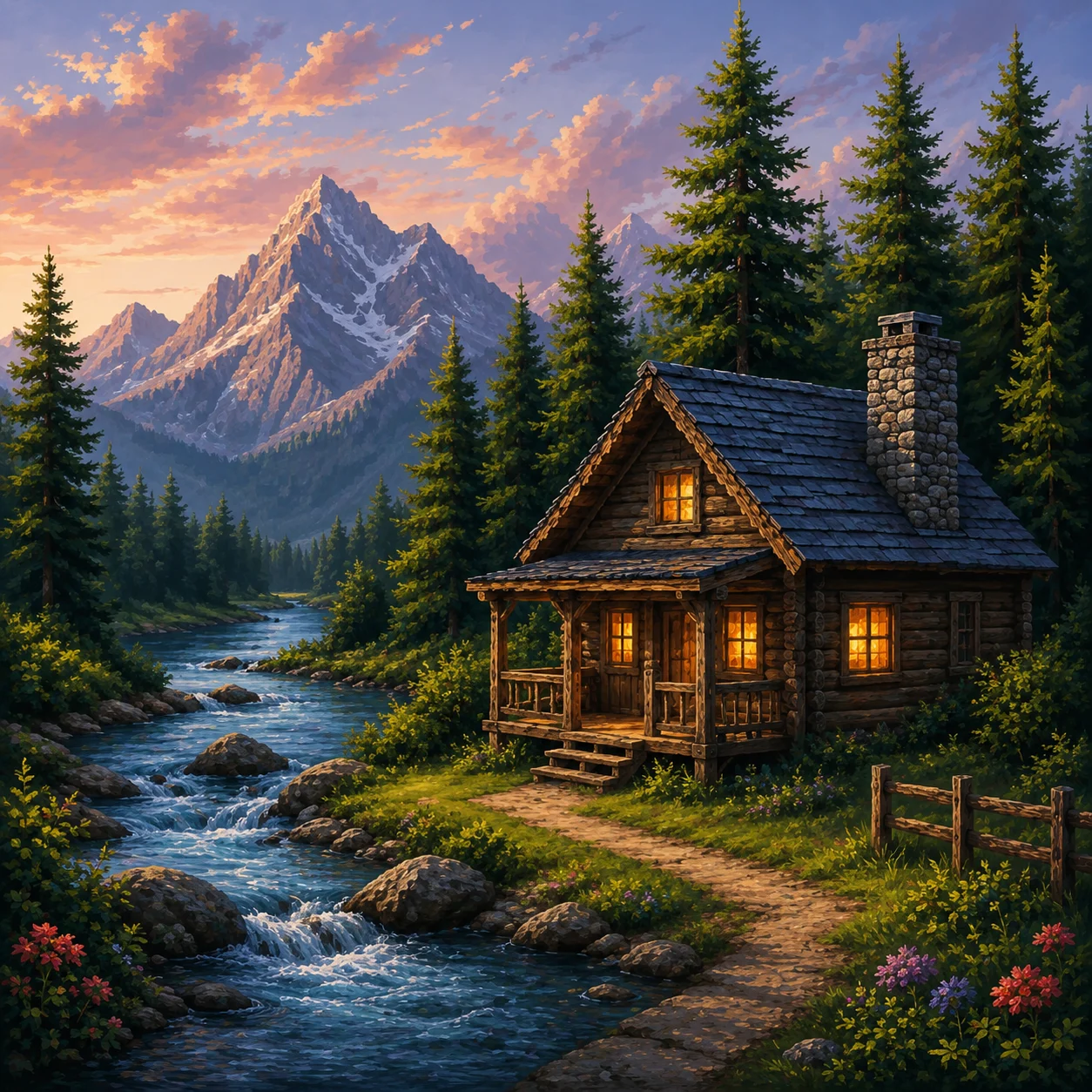 After
AfterAI Image Upscaling
Improve image resolution, sharpness, and usable detail with AI instead of simply stretching pixels. It is not magic, but it is a better first pass than manual resizing for many everyday files.
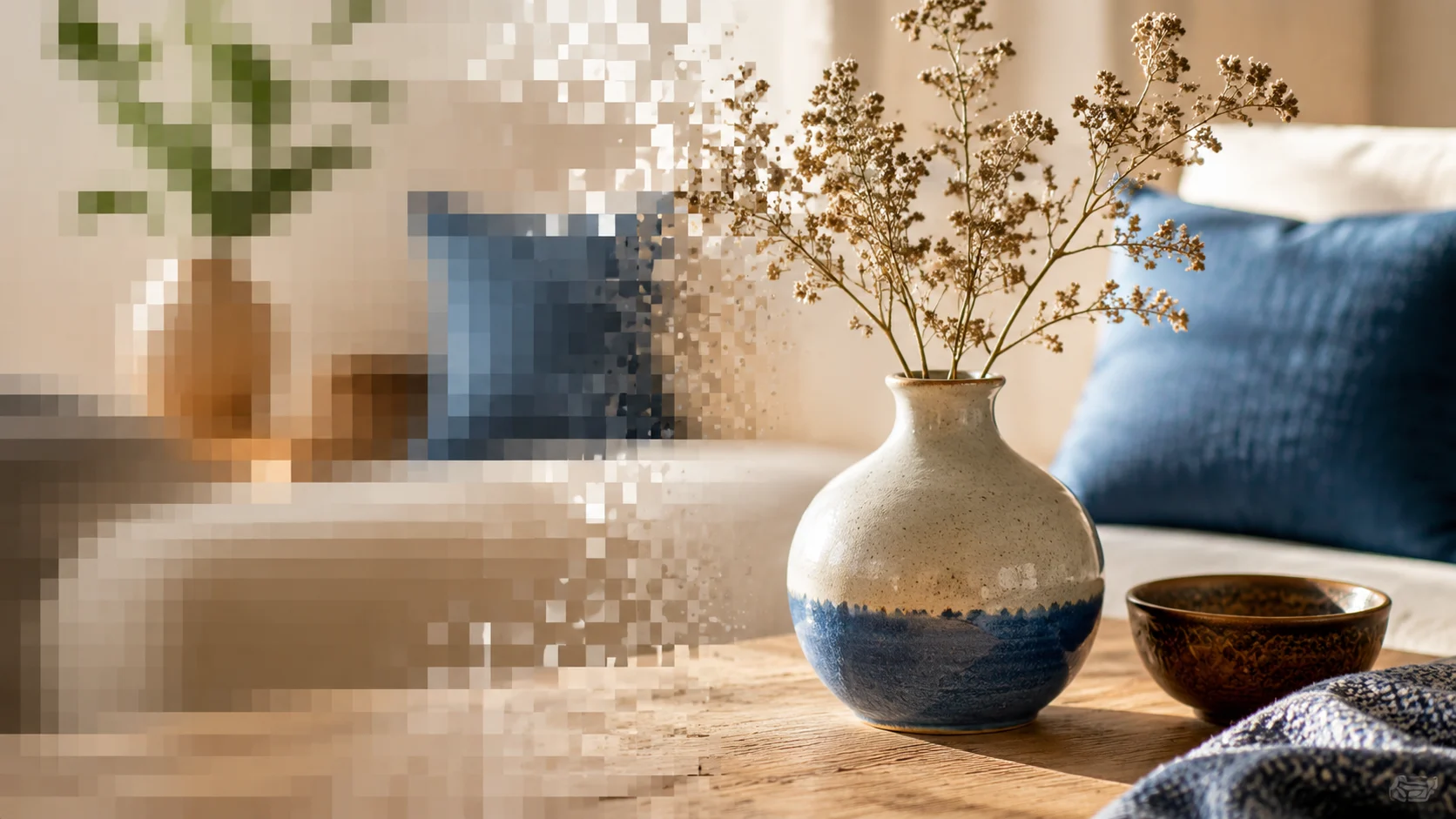
01 / Workflow
Traditional resize stretches pixels and often makes blur more obvious. AI image upscaling analyzes edges, subject structure, and texture so the larger image feels more usable.
Start for free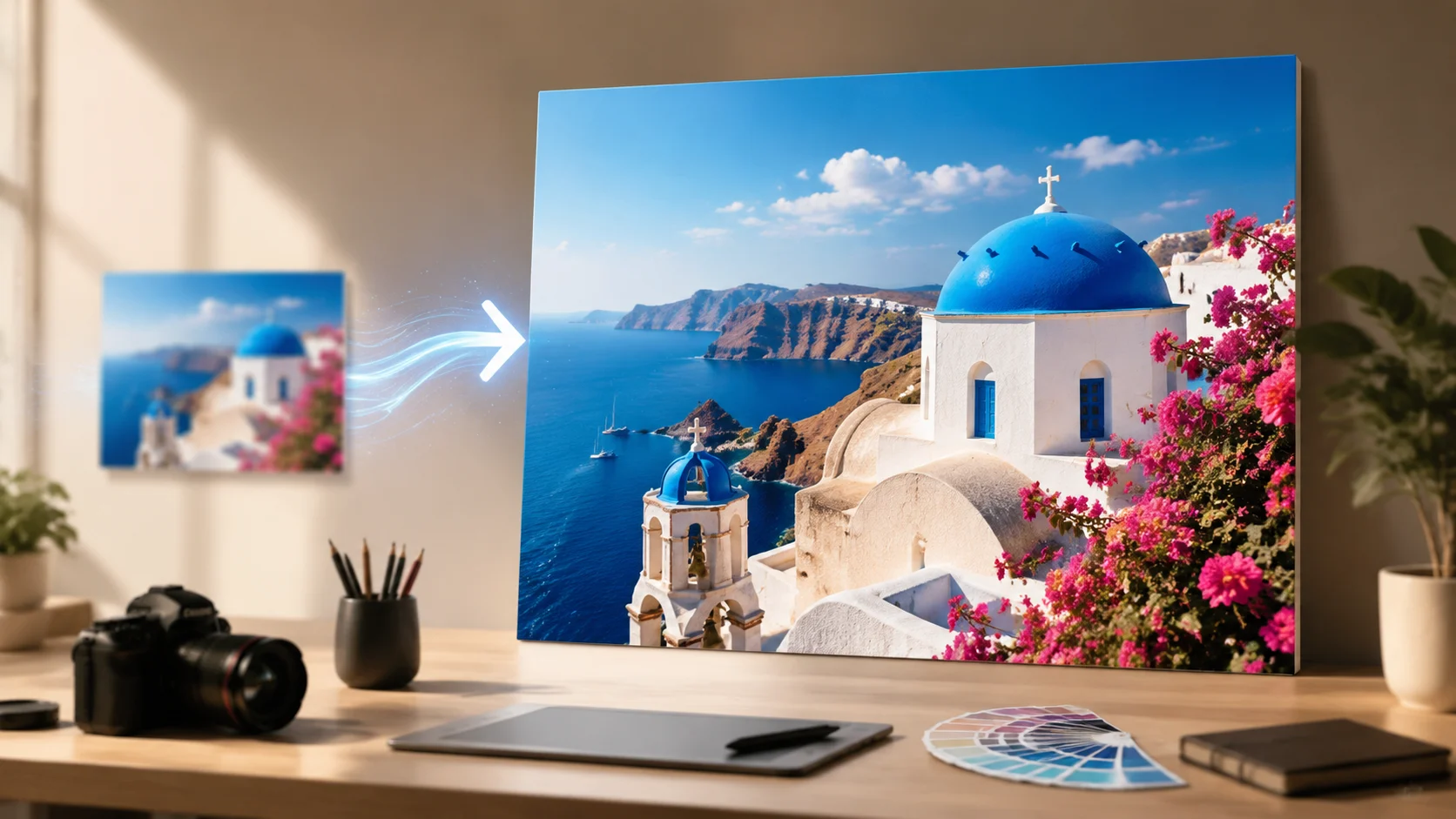
02 / Workflow
Choose the output size that fits the placement instead of enlarging every source to the maximum. Inspect faces, text, edges, and textures after generation.
Start for free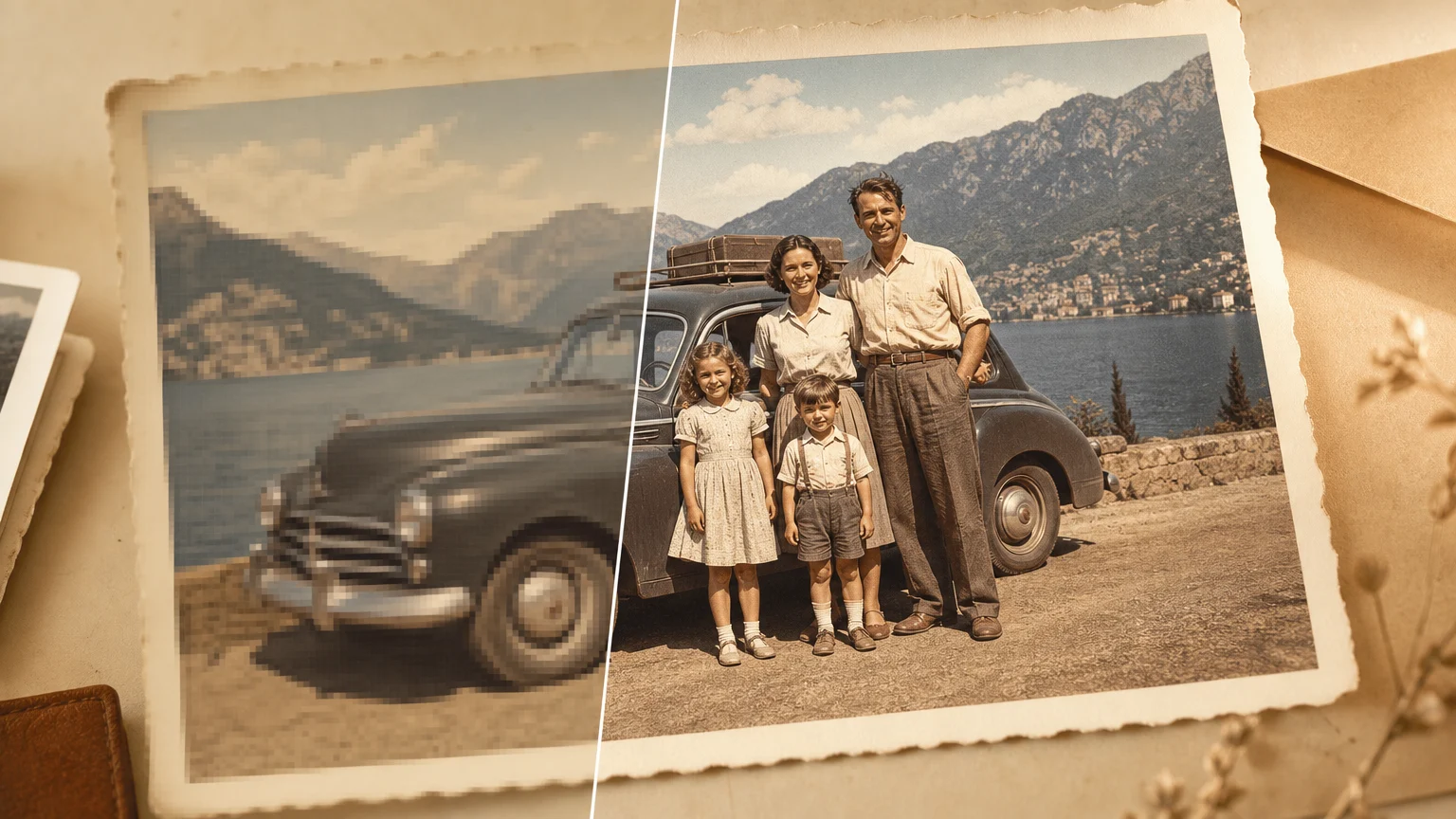
03 / Workflow
Export an upscaled image for websites, social media, ecommerce cards, presentations, or print drafts without opening Photoshop for a quick resize task.
Start for freeThe goal is practical quality: bigger files that look cleaner in real layouts, while being honest about cases where a tiny source image cannot be fully recovered.
Improve small, soft, or compressed source images when you need something that holds up in a larger layout.
Prepare product images, avatars, social covers, blog graphics, pitch decks, and lightweight print materials from imperfect source files.
Upload an image, choose 1K, 2K, 3K, or 4K, compare the result, and download. The generation button shows the current credit cost.
How it works
The workflow stays short on purpose. Upload, choose a scale, and compare the output before downloading.
Choose a JPG, PNG, or WEBP image from your device. You can also paste an image from the clipboard.
1K is the lighter starting point, 2K suits larger previews, 3K supports bigger crops, and 4K is useful when a clean source needs a larger output.
Compare before and after with the slider, then download the high-resolution image in your preferred format.
Useful when the source is recognizable but too small, soft, or compressed for the final placement.
Useful when the source is recognizable but too small, soft, or compressed for the final placement.
Useful when the source is recognizable but too small, soft, or compressed for the final placement.
Useful when the source is recognizable but too small, soft, or compressed for the final placement.
Useful when the source is recognizable but too small, soft, or compressed for the final placement.
Useful when the source is recognizable but too small, soft, or compressed for the final placement.
Creator notes
Eight grounded snapshots from everyday image work—from quick social posts to client-ready drafts.
“I came in for one quick product image and stayed to try three directions. The workflow never made me feel like I needed a tutorial first.”
 Maya R.E-commerce manager
“The controls are restrained in a good way. I can get a useful draft, download it, and finish the last ten percent in my usual design app.”
 Jon BellFreelance designer
“What won me over was consistency. I can repeat the same brief without rebuilding every setting from scratch.”
 Priya S.Content lead
“The first result is often close enough to start a real conversation with a client. That alone saves me a round of mood-board work.”
 Owen K.Independent maker
“I tested it during a busy launch week. It was fast, clear, and I always knew what the next click would do.”
 Nina ParkSocial media editor
“Being able to keep the source image visible matters to me. I can judge what changed instead of guessing from memory.”
 Luis M.Photographer
“It feels designed for actual production work, not just a flashy demo. The examples are practical and the output is easy to hand off.”
 Sophie ChenBrand coordinator
“I mostly use it for small weekly assets. It turns the blank-page moment into something I can react to in a couple of minutes.”
 Tom W.Newsletter creator
AI Image Upscaler
Not in the physical sense. Raster images need new pixels when resolution increases. This AI image upscaler aims for visual clarity: it keeps the original look as much as possible while rebuilding edges, textures, and small details.
Choose 1K for a lighter web or social draft, 2K for a larger design preview, 3K for a bigger crop, and 4K when the source is clean enough to inspect at a larger size. Higher output sizes can make source artifacts more visible.
You can upload JPG, JPEG, PNG, or WEBP images up to 20MB. PNG is a safer output for illustrations and screenshots, while JPG or WEBP can be smaller for photos and web publishing.
Sometimes, yes. AI upscaling may rebuild missing texture or sharpen soft edges, so tiny patterns can change slightly. If source fidelity matters more than size, start with 1K and compare the result before choosing a larger output.
It can make a recognizable portrait look cleaner at a larger size, but it cannot recover a face that is only a few pixels wide. Very blurry, heavily compressed, or motion-blurred portraits may gain invented detail.
Yes. Anime and illustration sources can benefit from a larger output, but inspect line edges and flat color regions for changes. Screenshots and small text may remain difficult to read after enlargement.
The source may be too compressed, too small, or already sharpened with artifacts. In that case, 3K or 4K can exaggerate noise. Try 1K or 2K first and compare the output with the source.
You can use results based on images you own or have permission to edit. Do not upload copyrighted product photos, portraits, or artwork unless you have the right to process and reuse them.
✦ One focused tool, ready for your next idea
Upscale photos, portraits, product shots, screenshots, and anime art for a larger, clearer draft while allowing for small changes in reconstructed details.
Start with AI Image Upscaler